

4 Settings To Fix Muffled Speech On Your Vizio Smart TV
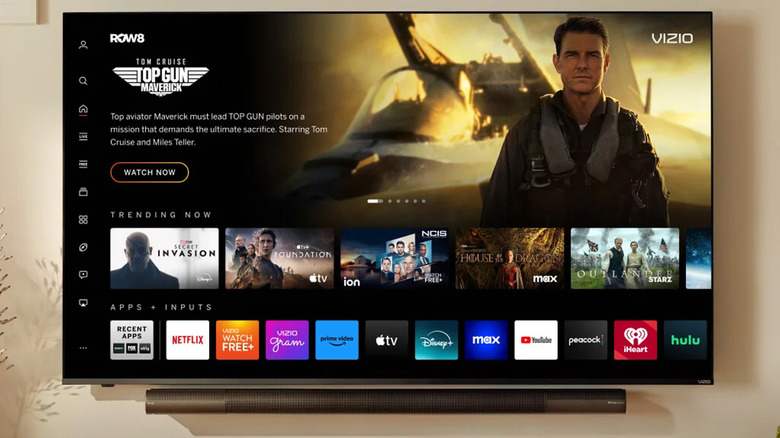
Vizio makes some of the best TVs you can buy on a budget, and its product catalog covers both FHD and 4K options with Mini LED panels. Now that 4K TVs no longer cost an arm and a leg, they can be a worthy investment if you consume a lot of media in the living room. Crisp visual quality is not the only element that drives an enjoyable movie-watching experience, though.
Sound quality is just as important and can make or break the cinematic experience. You could be watching a 4K digital copy of "Oppenheimer" with striking visuals, but if your speakers are busted, you'll not only miss half the plot, but you'll also have to endure a soundtrack that lacks punch or dialogue that sounds muffled. Of course, if your TV's speakers are physically damaged, you'll need to get in touch with Vizio's support team to assess your options.
However, if you've been experiencing poor audio quality — especially during dialogue-heavy montages — there may be a few settings you can tweak to tune things into place. Note that the exact menu and option labels may vary depending on which Vizio TV you own, as will the availability of certain features.
Sound settings for clearer audio quality on your Vizio TV
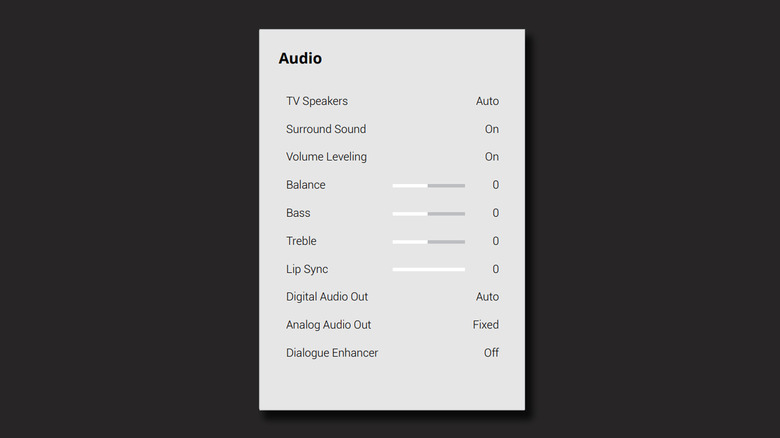
Televisions, out of the box, are tuned with picture and sound settings that favor movies and TV shows. These settings are often set just right for the majority of watchers, but they could use some tuning if you have different preferences. Like most brands, Vizio lets you adjust sound settings for a more personalized experience. On your remote, press the "Menu" button and navigate to the "Audio" section. There are a handful of options and sliders you can adjust here. To address muffled dialogue, try changing these settings:
- Surround Sound: Generally, this option is touted as the Holy Grail for achieving an immersive audio experience. However, if you're relying on just the built-in speakers on your TV, disabling surround sound might actually help with dialogue volume and clarity.
- Volume Leveling: Try enabling or disabling this option to see which state favors audio quality in your case.
- Bass and Treble: A lot of bass can muffle mid-range vocals, and lowering it may directly boost dialogue clarity. On the other hand, increasing treble lifts higher frequencies of sound, which is usually where dialogue sits.
- Dialogue Enhancer: If your source media contains Dolby 5.1 AC-4 audio, then toggling this feature on will improve the clarity of dialogue.
If you have a Vizio soundbar connected, you will see an additional set of options unlock. This includes a way to quickly change the EQ preset.
Still dealing with poor audio quality?

If, despite the settings you've changed, your Vizio TV continues to play muffled speech in the content you're watching, there may be other factors at play. First, if you only notice poor audio quality in certain videos, there's a chance that the audio source in the file itself has been poorly mixed. Try playing a different movie or episode to see if you can replicate this issue.
If you've messed around with various settings and want to restore your TV to its default state, press and hold the power button on your TV for 12 seconds while it is turned on. It's also wise to periodically check for system updates on your TV since they can solve known issues. Navigate to Menu > Admin & Privacy > Check for Updates to install any pending software updates, if available.
Next, check for any obstruction or dust that's physically blocking the speaker grille on your TV. Using a clean and dry cloth, give your TV a quick wipe down. If you're using an external soundbar, make sure it's out of any plastic coverings that may be affecting audio quality. In the event that none of the tips we've mentioned work, your best bet would be to contact Vizio support. If you have a valid warranty and a 30-inch or larger TV, Vizio provides in-home assessment and service.