

4 Useful CarPlay Features Most Users Don't Know About
CarPlay is an invaluable tool to drivers that are tied into the Apple ecosystem — mirroring their iPhone to the dashboard screen of their vehicle so various apps and features can be accessed without grabbing the phone itself. It's an incredibly handy innovation that many utilize every day for accessing Apple Maps and Apple Music.
Since CarPlay launched all the way back in 2014, Apple has made numerous changes, updates, and additions to it. Thus, there are some underrated CarPlay apps worth giving a try, and there are built-in features most don't even know about.
Overall, CarPlay has come a long way in the over a decade since it was released, yet many drivers aren't getting as much out of it as they could. These are just a few useful features you should be aware of to improve your time behind the wheel, and how to implement them the next time you connect.
Many drivers can benefit from changing CarPlay's text size
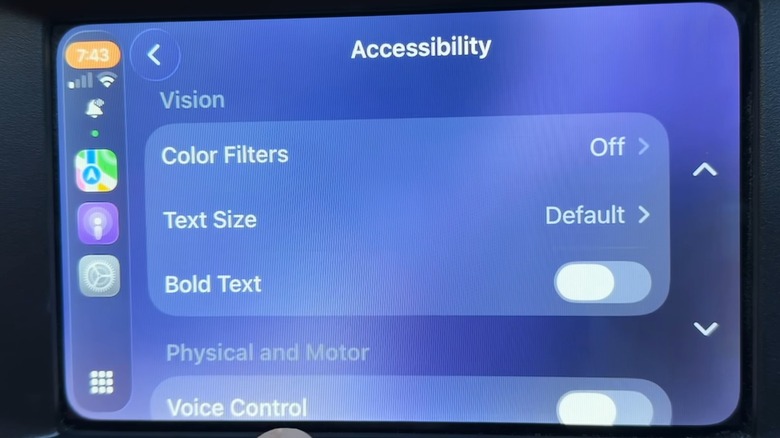
Even as dashboard displays in modern vehicles have gotten larger and easier to use, for some, visibility can still be a problem, and trying to read a screen from a distance while maintaining safe driving habits can prove difficult. Luckily, CarPlay has a solid accessibility feature that makes your screen's text easier to read. Though iOS 26 does have some common issues, in terms of CarPlay, one of its strongest positives is that it now allows you to change the text size as you see fit.
Altering your CarPlay text size is pretty simple. With your device connected, navigate on your vehicle's dashboard screen to the Settings menu. From here, go to the Accessibility tab, where you'll find the option to increase the text size from the default, or 100% level, to up to 135% in size. If this doesn't quite get your screen text where you need it, in the Accessibility area right below the Font Size tab is the Bold Text slider. Once this is turned on, your now-enlarged on-screen text will appear thicker, ideally making everything even easier to read.
Smart Display Zoom optimizes CarPlay for your screen
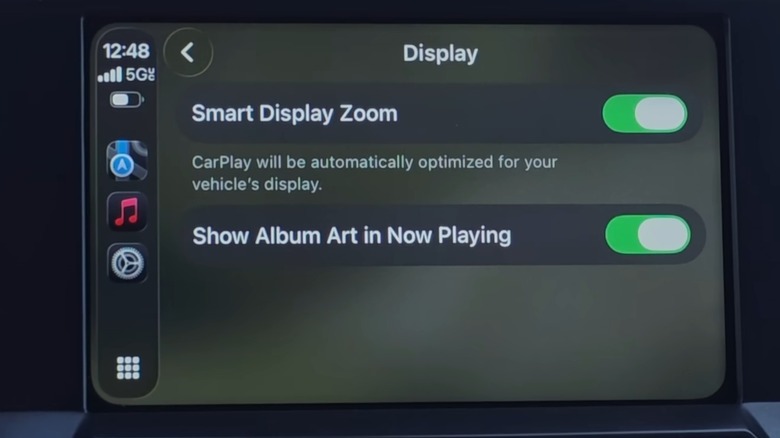
Though large, tablet-like dashboard screens have become the norm in the automotive world, not all of them are made exactly the same. They come in various sizes and dimensions across vehicle brands — making CarPlay better suited for some vehicles and model years than others. To make CarPlay more universal and improve display quality and visibility, Apple's aforementioned iOS 26 update brought with it yet another new feature: Smart Display Zoom. This helpful, yet easy-to-overlook option optimizes your CarPlay size and layout for the screen it's connected to.
It's entirely likely that when you connect your Apple device to your vehicle via CarPlay, Smart Display Zoom won't be enabled automatically. To access it, you'll have to navigate to the Settings menu on your infotainment screen and tap on the Display tab. This will take you to the Smart Display Zoom toggle, which you can then flip on. Your screen will go black for a moment to refresh before fading back in with a CarPlay layout that is more suitable for your screen's measurements. If you don't like it, the toggle can always be switched off.
CarPlay's Live Activities feature can keep you in the loop
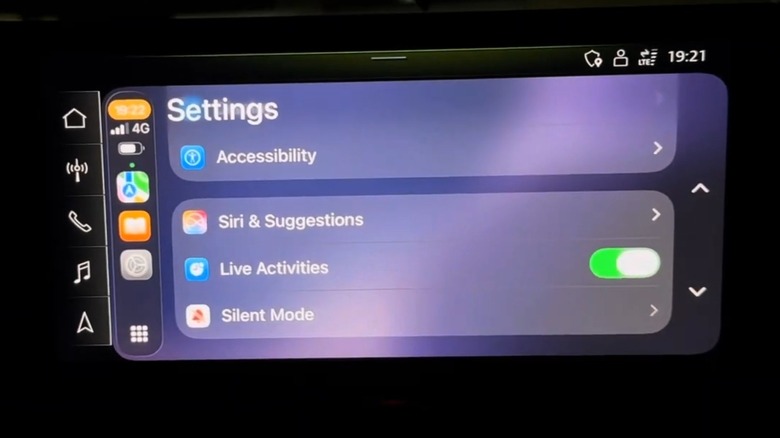
The idea behind CarPlay is to keep people off of their phones while driving. Not only is it unsafe, but in some states, you really don't want to be caught holding your phone while driving for legal reasons. Thus, Apple has brought many essential phone features to infotainment systems, making app access while driving significantly safer. The iOS 26 update has another advancement in this regard, bringing longtime iPhone feature Live Activities into the fold. This allows for real-time tracking of iPhone apps through CarPlay, providing food delivery updates, sports updates, and flight times, to name a few, while driving. To connect Live Activities to CarPlay to keep yourself in the loop, there's some setup involved.
First, Live Activities need to be set up on your iPhone, specifically one that's running on iOS 16 or a newer operating system. Go to Settings, tap Face ID and Passcode, and scroll to Allow Access When Locked. Live Activities needs to be toggled on here to access it. From here, return to the general Settings page and scroll to Apps, where you can select which apps you'd like to have Live Activities enabled for. When connected to CarPlay, Live Activities through these selected apps will appear on your vehicle's dashboard screen. If they don't, try going to the Settings page on your vehicle's screen and checking that the Live Activities toggle is on.
Sound Recognition keeps you in-tune with your surroundings
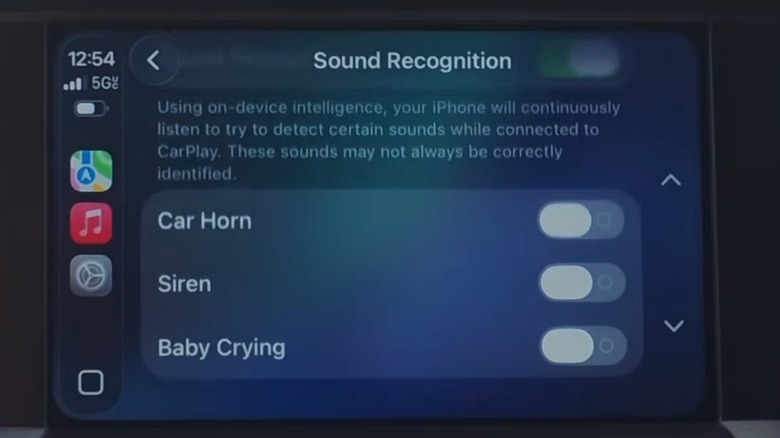
Just as it's key to keep your eyes on the road, it's crucial to listen for auditory cues while driving. As we age, our hearing can diminish, and in certain driving conditions, hearing things like horns and sirens can be difficult. This is where CarPlay can help out, acting as a second set of ears to keep you in-tune with your surroundings. This addition is known as Sound Recognition, and it has been built into CarPlay since iOS 18, though many may not know it's buried in the Settings menu and doesn't come enabled by default.
Setting up Sound Recognition via CarPlay only takes a few simple steps. Once you've navigated to the Settings menu on your vehicle's dashboard screen, you'll tap on the Accessibility tab. From here, scroll down to the Sound Recognition tab and toggle the feature on. At this point, a series of toggles will appear for car horns, sirens, and crying babies, and you can enable whichever ones you're concerned about not being able to hear. If such sounds are detected during your drive, your screen will give you an on-screen notification on screen indicating which have been heard.
CarPlay may not be for everyone, and there are even some apps that CarPlay can't work with, but on the whole it's a helpful development that can improve driving. By utilizing the features that don't often get talked about and aren't widely used, you can make your CarPlay experience even more helpful than it would be already.