

Is Your PS5 HDMI Port Broken? Here's How You Can Still Play On Your Console
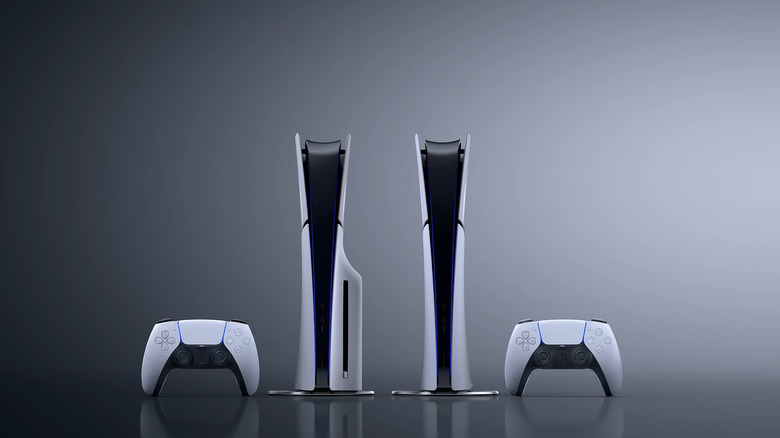
Sometimes, a small bout of bad luck can lead your tech to terrible places. In the worst-case scenario, it can render your devices useless, requiring expensive repairs or, in some cases, a total replacement. Sadly, the uber-expensive PlayStation 5 console is no exception. Some common problems you might've experienced include your PS5 turning off randomly, issues with the device overheating, or your HDMI output giving up the ghost altogether.
If you're unlucky enough to face up to a PS5 with an HDMI port that won't work, you're probably going to be stuck with a console that effectively only functions as a paperweight. That's because your console relies on an HDMI connection to send video and audio signals to your TV, monitor, or projector. If you've exhausted possible at-home fixes and tests with no avail, like swapping out the HDMI cable, trying your TV's HDMI port with another device, and booting your console up in safe mode, then it's probably time to send your console off for repairs.
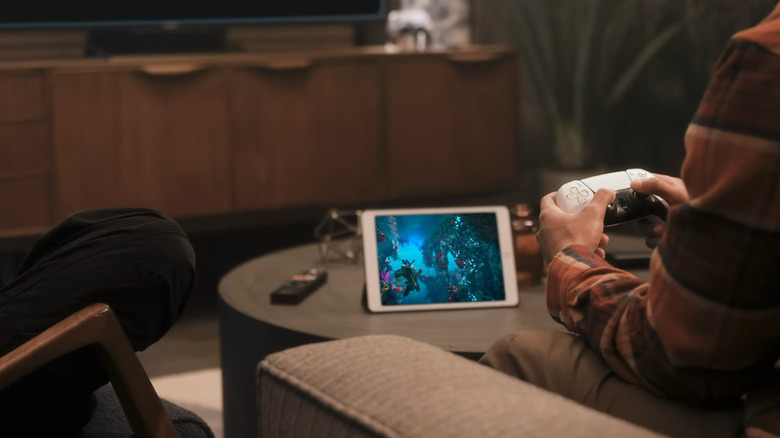
Repairs can be expensive — especially if your PS5 isn't under warranty — and it can take a while to get your console back home where it belongs. Thankfully, there's a workaround you can use until you're ready to send your console out to have its HDMI port repaired. PS Remote Play allows you to play select PlayStation games on compatible devices, including phones, tablets, TV devices, and the PlayStation Portal remote player. The only catch is that you either must have it enabled on your console already or find a way to enable it without using a screen.
How to set up PS Remote Play on the PS5

PS Remote Play lets you control your console from another device while connected to the same internet connection — but you need to enable it on your console to be able to use it. Setting it up ahead of time is invaluable as it ensures you'll be able to game even if your PS5's HDMI port breaks. Luckily, you can set up Remote Play with just a few steps:
-
Power up your console and go to the home screen.
-
Navigate to settings, then select system.
-
Open the Remote Play menu.
-
Select Enable Remote Play.
After you've done this, make sure your PS5 and your target device — like your PS4 or PlayStation Portal — are both connected to the same network and logged in to the same PlayStation Network account. Once that's done, you'll be able to stream most of your games to your desired device until you send your console for repairs or fully replace it. If you're struggling to establish a connection between the two devices, you can also try pairing them manually via the Pair Device option in the Remote Play menu.
Streaming your game library to another device via PS Remote Play isn't a great option for seamless gameplay, as it requires a high-speed internet connection and could compromise your game's performance and visuals while using up a lot of bandwidth. But in a pinch, it could be a lifesaver. You'll probably find PS Remote Play most useful in this situation if you own a gaming PC, a PlayStation Portal remote player, or an old PlayStation 4 lying around and don't mind compromising on performance. With a little technical know-how, you can even be able to remotely stream your PS5 games through your Steam Deck.
How to enable PS Remote Play on your PS5 when you can't see the screen
If you didn't already have PS Remote Play enabled on your PS5 when the HDMI port went kaput, then you might think that you're completely out of luck. That doesn't have to be the case, though. While it's a lot more difficult than it otherwise would've been, one Redditor on r/PS5 explained how he managed to set up PS Remote Play on a broken PS5 and get back into his collection without needing to see a single part of the menu.
Figuring out exactly how to navigate through the PS5's many menus without a screen to guide you is challenging. So, to reach the PS5's exact menu to set up PS Remote Play, the user asked a friend to guide them by telling them which buttons to press on their own PS5. They also suggested using headphones so the console's audio cues can guide you to the right place.
Then, they were kind enough to share the necessary steps to get the ball rolling on your broken PS5, too. First, power on your console and press the X button on your controller. Then, type in your passcode. The next steps are harder to express — so they did so by sharing a string of emojis that form an almost PS5-themed version of the Konami code. In case you were wondering, once you're logged into your PS5, you'll need to hit the following buttons to set up PS Remote Play: up, right, right, right, x, down, down, down, x, down, down, down, down, down, x, x.