

Common Problems With iOS 26 (And How To Fix Them)
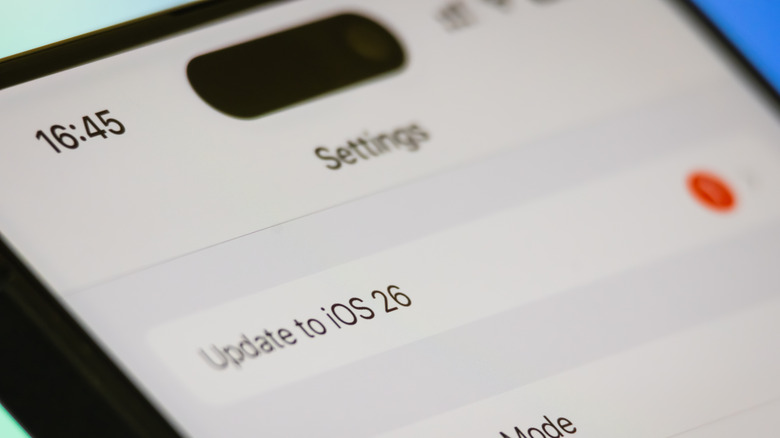
When Apple released iOS 26 back in September, many iPhone users were eager to try its new customizations, features, and security updates. But, as with major software transitions, the launch hasn't been smooth for everyone. While the majority of users are enjoying the new features after installing iOS 26, there's also a significant number of us who have been plagued by everything from mild annoyances to device-crippling major issues.
Upon the launch of the stable version of iOS 26, forums were flooded with issues like random black screen upon unlocking the phone, apps such as Camera, Phone, and Photos randomly crashing, and the new "Liquid Glass" UI stuttering. These issues made even the latest shiny iPhone 17 feel years old. Thankfully, for most users, these issues were resolved by a quick restart or updating to the subsequent builds that Apple deployed.
However, not every problem was fixed. Several persistent issues are still causing frustrations to users. From rapid battery drain to storage bloat to Bluetooth connection issues and missing app notifications, we have compiled a list of the most common problems users are facing with iOS 26, along with the steps you can take to fix them.
Severe battery drain and overheating
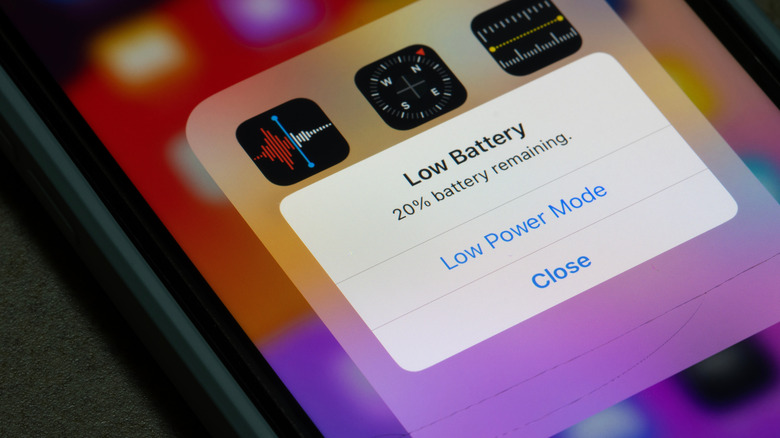
Watching a sudden drop of your phone's battery percentage can be panic-inducing. After the release of iOS 26, users have reported rapid battery drain and overheating on their devices. The issue seems to mostly affect the Pro lineup, specifically iPhone 16 Pro and 17 Pro. Users report their devices becoming uncomfortably hot to use, even while performing simple tasks like browsing the web.
If your phone is also becoming your hand warmer after the recent update, it might be because it's stuck re-indexing. After every major update, your iPhone re-indexes its data for Spotlight search. Usually this process takes 24-48 hours, during which time it's normal for the battery to drain rapidly and for the phone to overheat. However, if the issue persists for more than 48 hours, the indexing process is probably stuck and endlessly using the processor.
The best way to fix this is "Force Restart." Press Volume Up, then Volume Down, and then press and hold the Side Button until you see the Apple logo on the screen. If even a Force Restart fails to fix the issue, navigate to Settings > Battery and check which application is abnormally consuming battery power, then uninstall it if it's unnecessary.
Another thing you can do is check the "Background App Refresh" settings. Sometimes, a third-party app might struggle to adapt to the new OS architecture, resulting in continuous power use and overheating, leading to battery drain. Go to Settings > General > Background App Refresh and temporarily turn it off to check if that stops battery drain.
System data storage bloat
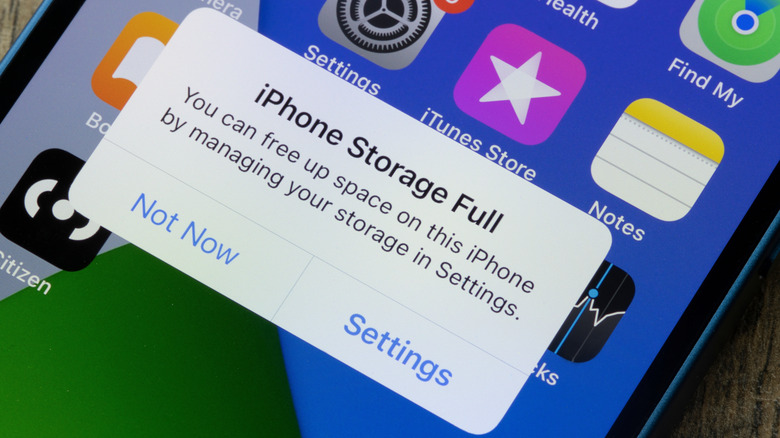
If your iPhone storage is unusually full right after updating to iOS 26, you are not alone. A bug in the initial version of iOS 26 is causing the "System Data" category in the iPhone storage to fill up inexplicably. Usually, this category reserves a few GBs of data for caches and logs, but after the update, some have found it taking up 30-50 GB of data, unnecessarily hoarding the storage.
This bloat usually occurs when the system fails to purge temporary cache files, or when there is a problem with photos syncing. It can also happen during the indexing process after the major update. Technically, there's no solution to it. You just have to wait a day or two, and the problem usually solves itself. You can also perform a Force Restart. If the photos aren't syncing, check your iCloud account and restart the syncing process (it can sometimes take longer to complete or even initiate). However, if the issue persists, the most reliable solution is to update your iPhone to the latest build.
Manually uninstalling streaming apps such as Spotify, YouTube, and Amazon Prime Video and then reinstalling them also works, as these tend to hold the largest caches, sometimes up to a few GBs each. Apps like Safari and Chrome are also common culprits.
If all these fixes don't work, the problem is severe, and the only option is to back up your entire important iPhone data to iCloud or a PC, factory reset it, and restore the data from the backup.
No SIM card installed / Connectivity drops
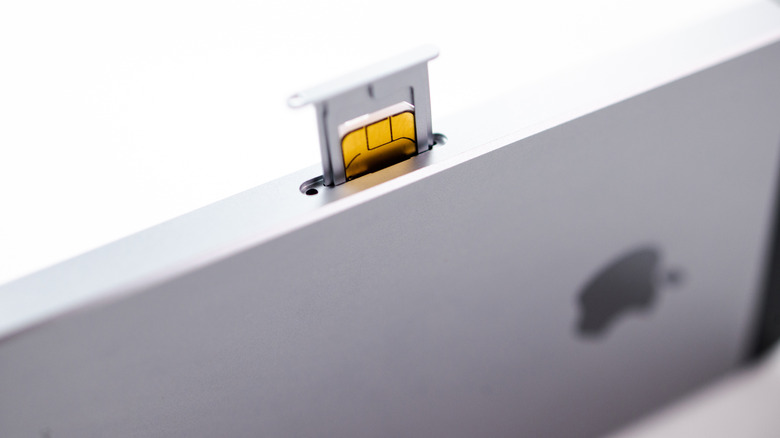
Any smartphone would become dumb if it cannot make calls or access the internet. This can happen when you get a "No SIM Card Installed" or "SOS Only" error message on your iPhone after installing the latest iOS 26. Mostly, users on 5G standalone are particularly affected by this issue. This can happen when the device transitions from the Wi-Fi network to the cellular network.
The fixes to this issue are straightforward. Before complaining to your service provider, try toggling Airplane Mode on and off, restarting the device, or simply updating to the latest build to see if it contains a fix for the bug.
If the issues continue, the culprit might be the corrupted carrier configuration. In that case, reset your iPhone's network settings. Remember, all your saved Wi-Fi network passwords will be wiped out in this process. Navigate to Settings > General > Transfer or Reset iPhone > Reset and select "Reset Network Settings." This should mostly fix the issue, especially if you use an eSIM. If you use a physical SIM card, pop out the SIM tray and ensure the card is clean and correctly seated.
Bluetooth connectivity issues
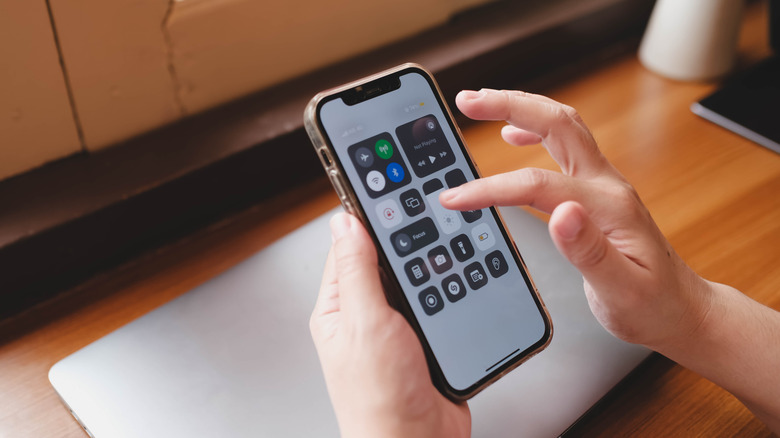
Everyone loves the ease of wireless connectivity until it stops working, and then it only leads to frustration. Updating to iOS 26 has resulted in various Bluetooth connectivity issues, such as AirPods not automatically connecting or dropping connection while in use. Even CarPlay users are experiencing connectivity issues.
The best solution to fix it is to forget the device and re-pair it. Simply navigate to Settings > Bluetooth, find the device that's having trouble connecting, tap the "i" icon, and select the "Forget This Device" option. Then you can optionally restart your phone and put your devices into pairing mode to reconnect them to your iPhone's Bluetooth. If that doesn't work, reset the network settings, but that would also reset your Wi-Fi network and erase all the saved SSIDs and passwords.
If you are specifically facing the problem with CarPlay, the issue might be related to the new "Siri Hands-Free" protocols. To properly use CarPlay, ensure that Siri is fully enabled on your iPhone. Go to Settings > Siri & Search to verify that. Further, check for any firmware updates available for your car's infotainment system. Not always the culprit is your iPhone or iOS 26; sometimes the infotainment system requires a new patch to get compatible with the latest iOS.
App notifications missing

This is probably the weirdest issue iOS 26 introduces. Nothing is more frustrating than your phone giving you the "silent treatment," especially when you entirely rely on it for both professional and personal communications. Users are missing alerts from essential apps like Slack, WhatsApp, Mail, and Instagram. The notification appears only after manually unlocking the phone or, sometimes, after launching the app.
You might think this issue is due to a bug in the "Do Not Disturb" feature, but that's not the case here (quickly swipe down on the Control Center on your iPhone and check if Focus Mode is off). The issue is mainly due to the "Schedule Summary" feature, which bundles alerts and summarizes them later instead of showing them instantly. iOS 26 might have defaulted this setting for all your communication apps. Go to Settings > Notifications > Schedule Summary to check it. While you are at it, check if you have enabled notifications for all your required apps. Ensure that notifications are enabled for Lock Screen, Notification Center, and Banners.
If the issue persists, try uninstalling and then reinstalling the apps that are having trouble showing notifications. This is the nuclear option, and you must ensure that you provide the proper notification permissions to the apps when reinstalling.