

iOS 26 Quietly Added A Game-Changing Feature For AirPods And iPhone Video
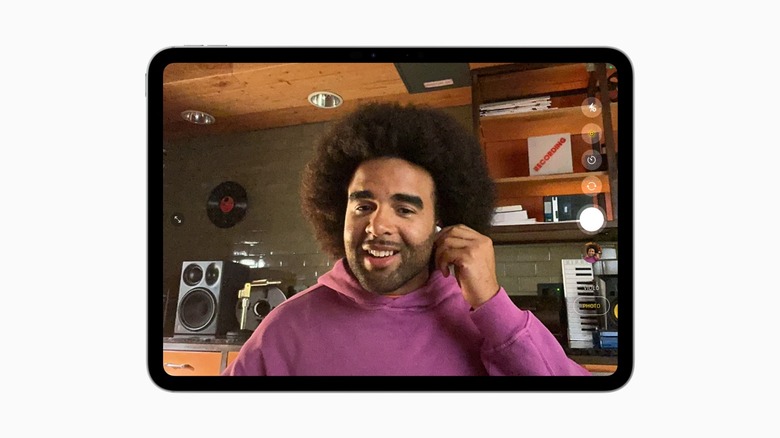
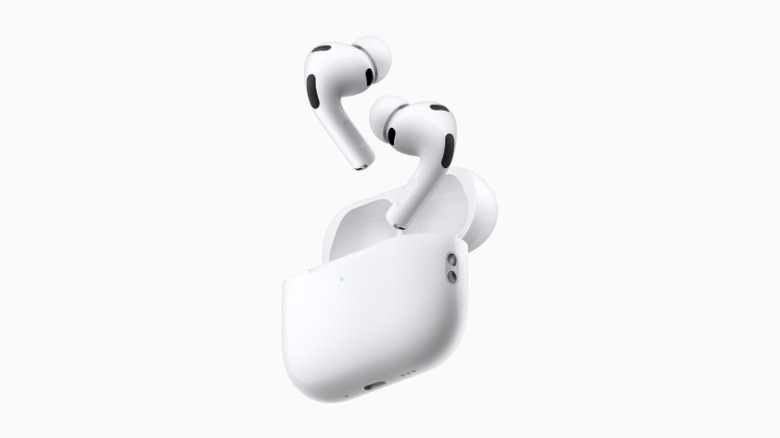
Apple's iOS 26 rollout might have been highlighted for its shiny Liquid Glass UI and AI tricks, but the update snuck in a handy feature that will impact how you shoot videos on your iPhone, and it's probably not what you expect. Tucked in the iOS 26 release notes is support for using your AirPods as a video remote and an external mic for iPhone video capture. So basically, with iOS 26, if you're sporting the AirPods Pro 2 or AirPods 4 (and compatible firmware), you can press and hold the stem on your AirPods to start and stop video recording hands-free, well, sort of.
It's great for vlogging, action shots, or TikToks where reaching for your phone would interrupt the moment. But there's more. iOS 26 lets those same AirPods serve as a studio-quality recording mic for your videos. This means that background noise gets filtered out, and your vocals sound way clearer, all without any additional gear. The best part is that this works even when you're recording with third-party camera apps. It's one of those features that feels obvious in retrospect, and in a few weeks, you'll probably wonder how you ever recorded video or audio without it.
How to set up the new AirPods video controls
Once your iPhone is on iOS 26 and your AirPods update in the background, you should see a Camera Remote option in your AirPods' settings. All you need to do then is choose your preferred method for triggering the feature — either pressing once or pressing and holding. It isn't complicated to set up or use. When you're ready to start recording, just press or press and hold the stem, and do the same to end the recording. Using it actually feels surprisingly natural.
If you film yourself a lot, this is a lifesaver. You can step back, get into your frame properly, and start recording without running back and forth, dealing with the awkward "okay wait, let me press the button" moment, or needing any complicated workarounds. Whether you're capturing group shots, fit checks, or short travel clips, recording is about to get easier because you're no longer tethered to the phone.
But honestly, the audio upgrade is the first thing you notice. Since your voice is being recorded straight from your AirPods, it'll sound way cleaner than the default iPhone mic, especially when there's a lot of background chatter. All you need to do is connect your AirPods to your phone like normal. Then, when you're in your preferred video recording app, open 'Control Centre', tap 'Camera Controls' at the top, and tap 'Input' beneath 'Audio & Video', then select your AirPods from the list of options. And the best part? You're not clipping on a mic, hiding wires, or attaching anything extra.
Why this matters more than you think
Unlike other iOS 26 features, there wasn't much hype around this, and there might be a reason why. This feature quietly shifts how people record video with almost no learning curve and no new accessories, and that's exactly why it matters. It's supposed to quietly integrate itself into and improve your ecosystem. For starters, it adds more use cases, making the AirPods even more valuable to own. So now, they aren't just wireless earbuds. They're also a wireless microphone and a remote shutter release, so you can get cleaner audio and easier controls with a device you probably already use every day.
It also makes it a lot easier for the average person who wants to create better content. Maybe you don't want to buy a lavalier mic or carry around extra gear. Or, you could simply want the easiest possible way to film yourself without awkward hand movements. iOS 26 gives you an easy solution to this, using hardware you already have in your bag or pocket. In real-world use, it could be one of the most practical additions in years. iPhone videos already look good by default. And with iOS 26, they could sound even better, and starting a recording is as simple as tapping your ear.