

Samsung's Adaptive Smartphone Clock Solves A Problem We Didn't Know We Had
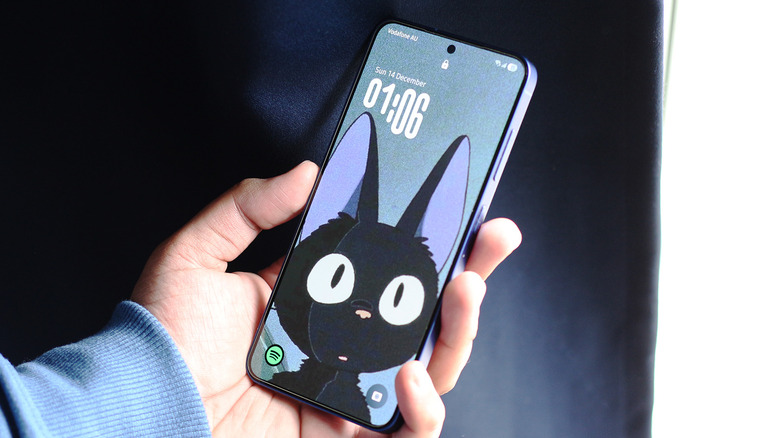
Android has had customization options ever since its early days — it's what distinguished it from other mobile OSes that existed back in the day. Yet, we've only recently started to see customizable lock screens that let you pick different fonts, sizes, and colors for the clock. Many OEMs have leaned in heavily for an iPhone-inspired lock screen engine, allowing you to pin widgets and change the two quick long-press shortcuts. Call it shameless feature borrowing if you will, but this does put more options on the table for us consumers.
Apple recently unveiled a feature that lets users change the size of the clock in iOS 26 — and of course, we're seeing derivatives of it on Android. Samsung phones running the latest version of One UI 8.0 have a new clock style that takes the already dynamic lock screen experience to a higher level. Supported wallpapers will now allow you to warp the digits of the clock around them for a cleaner look.
We've had depth effects for the lock screen clock before, but the new Adaptive Clock works almost in the opposite way. Instead of hiding the clock behind content in the wallpaper, it dynamically stretches the individual digits around the subject in the wallpaper. This feature not only lets you create interesting-looking lock screens, but also improves readability without covering up faces of people or pets. Here's how you can set it up on your Samsung device.
How to use the new Adaptive Clock on Samsung phones
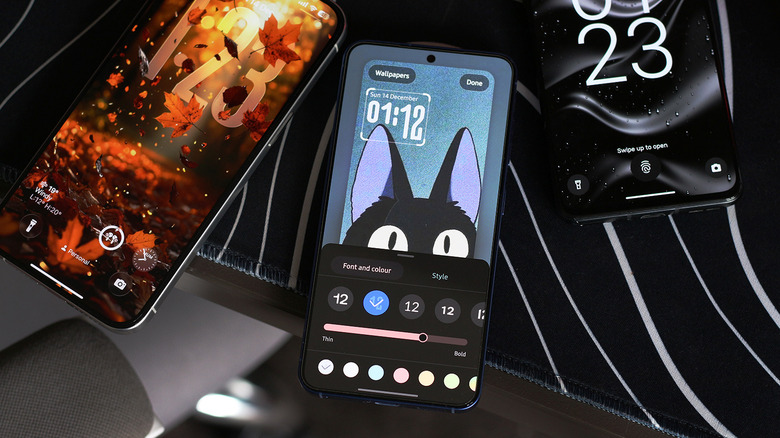
First and foremost, you will need to source a wallpaper that actually works with the new Adaptive Clock feature. Due to its nature, you are mostly restricted to wallpapers with a subject that's either a person or an animal. In our testing, the feature seems to have a higher chance of working for wallpapers containing a single subject. In addition to photos of real humans and animals, it does seem to work with other art styles, like cartoon or anime.
Follow these steps on a compatible Samsung Galaxy phone or tablet:
- Unlock your device, and long-press on an empty area on the home screen.
- On the options that appear at the bottom, select "Wallpaper and style."
- Tap on "Change wallpapers," and select one that matches the requirements we've talked about above.
- Select the lock screen option, and tap on the clock.
- Under the "Font and color" tab, select the second font option. It should have an icon that resembles two digits of different sizes.
- Stretch and adjust the position and size of your clock.
- Tap on "Done."
As you're adjusting the Adaptive Clock, you should see the digits dynamically shifting in size and position in real time. If they don't, you likely need to try a different wallpaper where the subject is better pronounced. While in the wallpaper settings, you can also change the color of the lock screen clock.
Unable to see the Adaptive Clock option?
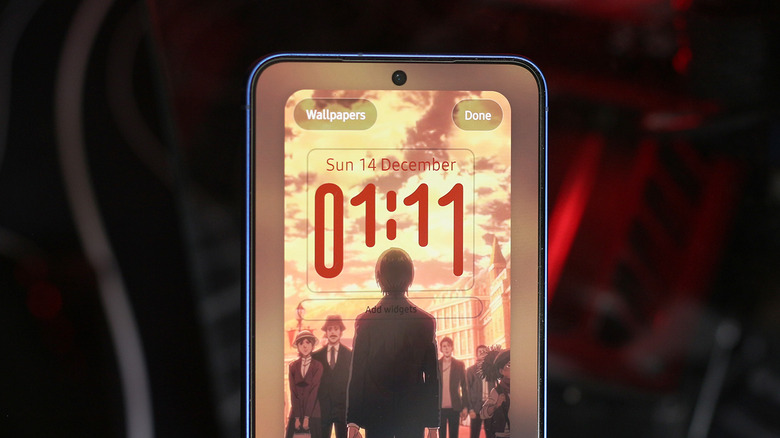
If you can find the Adaptive Clock font option, but can't see the feature in action, you simply need to try a different wallpaper. We noticed that the option did pop up in some cases, even if the wallpaper wasn't fit for the Adaptive Clock to function. Make sure the subject in the wallpaper is high enough on the screen to overlap with the clock. You can zoom in and position the wallpaper to do this. However, if you can't spot the Adaptive Clock option at all, you need to first ensure you're running the latest version of the software, which is One UI 8 at the time of writing.
On your Samsung Galaxy device, navigate to Settings > About phone > Software information to check the One UI and Android versions. To check for new updates and install them, head back to the Settings app, and navigate to Software update > Download and install. Samsung also recommends updating the Lock Star app on your device, which is a component found within the Good Lock app. Launch Good Lock, navigate to the Lock Star app, tap on the "i" icon, then the three-dotted icon, and tap on "About." For Adaptive Clock to work, the Lock Star app needs to be updated to 7.0.1.10 or newer. Head back and install any updates if available. Good Lock is just one of the many Samsung Galaxy features you're missing out on.