

What Is The Bottom Port On An Xbox Controller For?
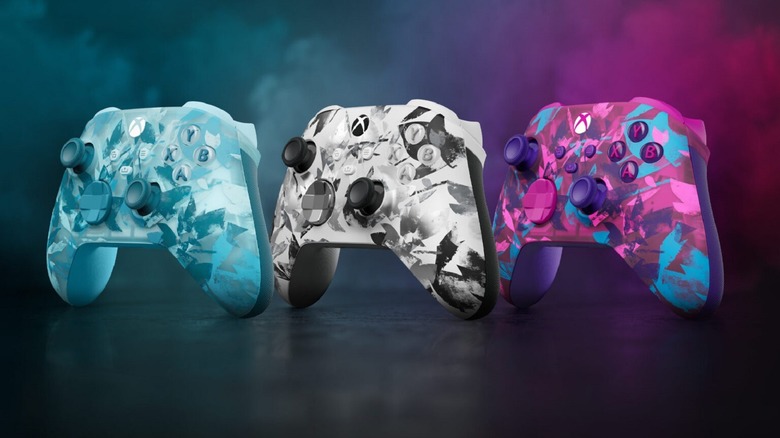
There aren't many ports on an Xbox controller. Both the wired and wireless varieties come with a USB port at the top of the controller, which is used for either connecting your controller to your console or charging the device when it's not in use. The purpose of the ports on the underside of your controller is slightly less clear, though. One is a 3.5 mm auxiliary jack for an Xbox One-compatible wired headset or other auxiliary output, while the other is known as the Expansion Port. This is designed especially for connecting accessories to your controller.
Unlike handheld fair like the Switch 2 or Steam Deck, Xbox consoles don't have an auxiliary jack built in. Instead, you have to output your audio via another connection or through the controller. This means that your wired gaming headset goes directly into the controller, via either the auxiliary jack or the Expansion port.
The easiest and most widely compatible way of connecting your headset to your Xbox One Controller is via its built-in auxiliary jack, but the earliest versions of the Xbox One Controller didn't include a 3.5 mm port at all. This is where the Expansion port came in, giving you the option of connecting accessories like the Xbox One Stereo Headset Adaptor or the Xbox One Chat Headset.
What is the Xbox One Expansion port?
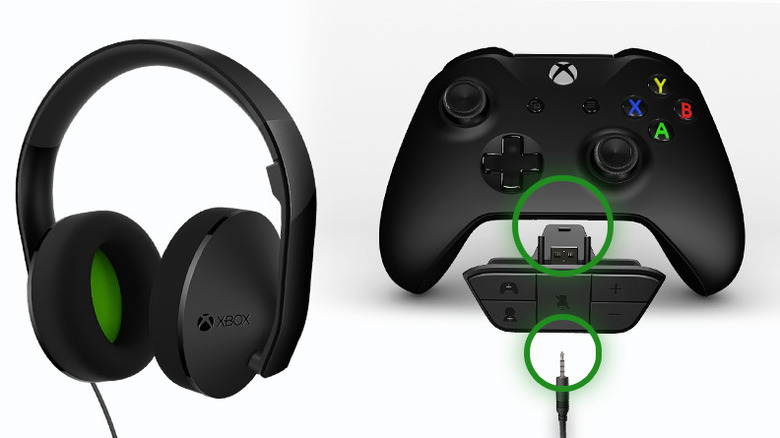
You can find the Expansion port on the bottom of official Xbox One Controllers, between the controller's two grips. It's a divot or recessed area; on newer models, the auxiliary port will be next to it. You can use this port to connect accessories directly to your controller to use while you play. For example, if you wanted to use a chatpad on your controller for easy typing while using your controller, then you could connect it via the Expansion port. Similarly, you can run other accessories like the Xbox One Stereo Headset and Adapter through the port to enjoy voice chat while you play.
The Expansion port used to be a crucial part of your controller, but in recent years, it's started to fall out of favour. Newer revisions of the Xbox One controller include a 3.5 mm jack as well as the Expansion port. Meanwhile, some licensed models like PowerA's Advantage Controller omit the input altogether, replacing it with only a 3.5 mm aux jack instead. The aux input is compatible with just about any wired headphones, headset, or earbuds that you might want to use while gaming, without needing to use first-party products or adapters, rendering the Expansion port useless in some cases. It does mean that you can't connect chatpads to controllers that don't have an Expansion port, but you do have the option of running a USB keyboard directly through your console instead.
How to connect your Xbox One to an auxiliary without using the controller

If you want to hook your Xbox One up to an auxiliary output without running it through the controller, then you have several different options. If you're gaming through a TV, then it's likely to have an auxiliary output hidden on it somewhere. Connect your Xbox One to your TV using an HDMI cable to route the sound to your TV, then plug your headphones directly into its port.
Alternatively, if you're not gaming through a TV or other device with a direct auxiliary output, then you should use an adapter. If you're using a non-S|X series Xbox One, then you can use an optical to 3.5 mm converter. Plug the converter into your Xbox One's optical port on the back of the console, plug the converter into a USB-friendly plug, and connect your auxiliary cable or headphones to the adapter. The optical port on your Xbox One is labelled S/PDIF.
Own an Xbox Series S or X? You'll need to use an HDMI extractor, as they don't have an optical audio output. This device splits your audio and visual signals up, as they're normally connected through an HDMI output. Just like the optical converter, it needs a power supply, so you have to plug it in. Next, connect your console to the extractor's input using an HDMI cable. The extractor then has two outputs: one that you need to use another HDMI cable with to connect it up to a monitor, and another for your auxiliary output. Connect your headphones or auxiliary cable to that, and you'll be good to go.