

3 PS5 Settings You Should Change Before Playing GTA 6
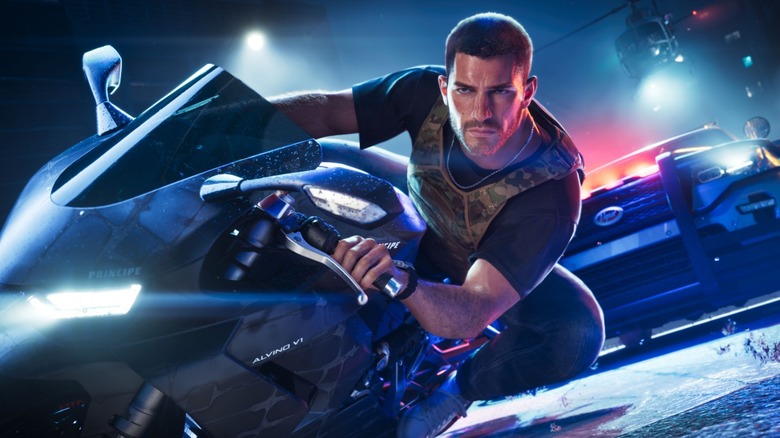
It's no exaggeration to say that "Grand Theft Auto 6" has been one of the most anticipated games of the decade. The title's development has faced several delays and has spanned the last 12 years, with rumors and speculation circulating like wildfire as leaks and subtle hints from the company continued to tease fans. Not only that, but it's estimated to have cost Rockstar Games between $1 billion and $2 billion to develop, making it the most expensive video game of all time. This has set the stage for what promises to be one of the most ambitious and graphically advanced games released to date. With that in mind, players who are getting ready to play the game for the first time will want to make sure that they have their equipment fine-tuned to give them the best experience possible.
A game of this caliber has high hardware demands, even for modern consoles. Those playing "GTA 6" on their PlayStation 5 might want to consider taking a look at the console's settings. There are a lot of tips and tricks you can use for optimal gaming performance. Optimizing display, sound, and system configurations is good for any game, but getting these dialed in just right for exploring Vice City can help improve your overall experience. Taking just a few minutes to adjust these options before you sit down to play will help to ensure that you aren't leaving any performance on the table.
Enable HDR
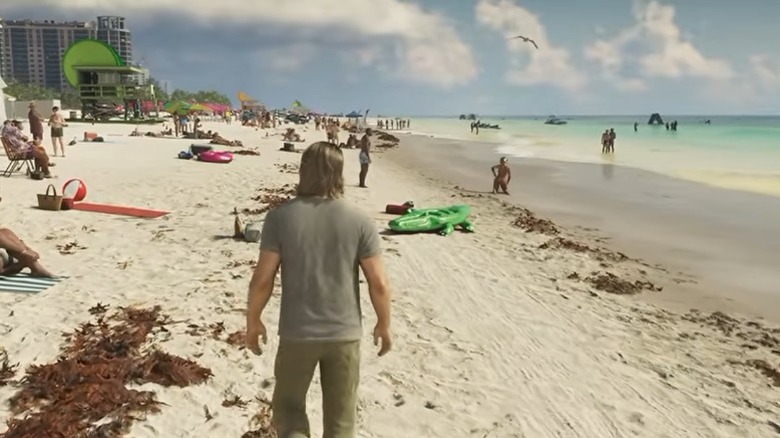
One of the first things fans noticed when Netflix launched the "GTA 6" extended trailer was that Vice City is a setting that is rife with vibrant lighting, color, and contrast. The brilliant Florida-inspired sun lights up the days while a cascade of neon lights illuminates the night. One of the best ways to get the full experience when viewing this is to enable High Dynamic Range (HDR) on your PS5. This technology ensures that your TV or monitor showcases the full spectrum of light and color that this game has to offer.
To activate HDR on your PS5, go into the console's Settings menu and then navigate to Screen and Video. Here you'll select Video Output and then HDR. There are two options for you to choose from here that will both work. You can pick Always On, which makes it so that even games and apps that aren't technically considered HDR-compatible will automatically convert to an HDR output, or you can select On When Supported, which makes it so that the setting will only turn on when games have official HDR support. It's no surprise at all that "GTA 6" does indeed support HDR, so either one of these settings should work for the game.
You aren't quite done once HDR is enabled, though. You should also run the Adjust HDR calibration tool, which is also on the Video Output screen. This is a quick process that asks you to adjust a sun icon until it barely disappears against bright and dark backgrounds. Taking 30 seconds to calibrate this prevents bright headlights or neon signs from blowing out into white blobs while keeping dark interiors visible.
Personalize your 3D audio settings
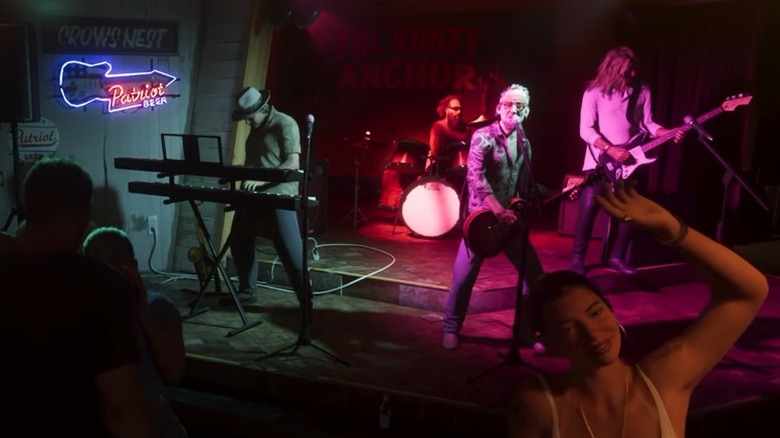
It seems like visuals tend to get the majority of the attention whenever you're talking about game fidelity, but people often forget that sound design is pretty important too. This is doubly true in a game like "GTA 6," where music, crowd noise, roaring engines, and gunfire all contribute to the ambiance. Sony's Tempest 3D AudioTech engine creates a convincing three-dimensional soundscape that helps you pinpoint exactly which way noises are coming from. That said, the default 3D audio profile might not be for everyone.
You can adjust the way the 3D audio works by going into Settings and selecting Sound. Here, you will find options for TV and headphone 3D audio. If you plan on using your external TV speakers, select 3D Audio (TV). You'll be prompted to follow on-screen instructions that will help you calibrate the sounds based on the position of your TV, your seating, or the environment you're playing in. Then go back to 3D Audio (TV) and turn on Enable 3D Audio for TV Speakers.
If you're using headphones, go to the Sound screen, select 3D Audio (Headphones), and then select Create Personalized 3D Audio Profile. You'll be prompted to follow several on-screen instructions that will help you calibrate the 3D audio to your specific headphones and tastes. You'll then select Apply Personalized 3D Audio Profile, and you'll be ready to jump into the game with custom-calibrated directional sound.
Dial in DualSense haptics and trigger resistance
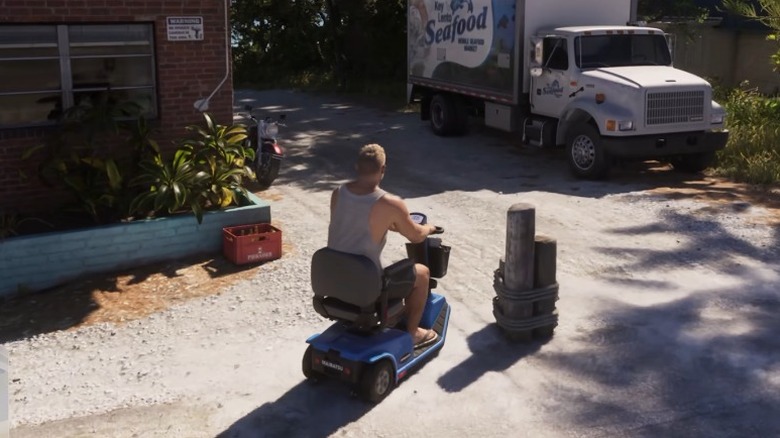
One of the best things about the PS5 is the controller. The tactile feedback of haptics combined with the adaptive triggers arguably makes the DualSense the best controller ever made. In a game like "GTA 6" that has a diverse range of vehicles and weaponry, haptic feedback lets you feel the subtle difference between smooth asphalt, gravel shoulders, and rainy streets, while adaptive triggers simulate the resistance of gas pedals and firearm triggers. That said, those who want to marathon multi-hour gaming sessions might prefer a lighter touch. A lot of people might not know that you can actually adjust the intensity of this feedback.
If the factory calibration is a little too intense for a long gaming session, you might want to reduce the controller vibration and trigger resistance. To do this, open Settings and then go to Accessories and Controller (General). This screen will present you with options for dialing down the vibration and trigger resistance, allowing you to customize the level of feedback you want to experience while you play the game. This same area also allows you to adjust the controller's speaker volume. These adjustments give you much greater control over the DualSense and, by extension, your experience interfacing with the world of "GTA 6."