

Why The Ethernet Port In Your Wall May Not Be Working (And How To Fix It)
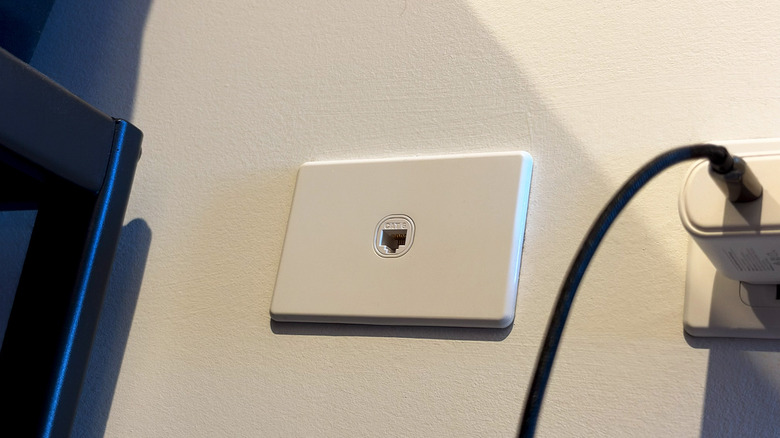
Modern Wi-Fi routers support gigabit connectivity, accommodating demanding workflows like 4K streaming and online gaming with ease. That said, a wired internet connection is always preferable whenever possible. If your Wi-Fi connection is a bottleneck, Ethernet might let you enjoy faster speeds, reduce latency while gaming online, and provide immunity to the interference that can affect wireless connections. If your home has Ethernet ports built into its walls, you might be able to take advantage of wired internet connectivity without having to run long cables across rooms.
However, simply plugging your computer or laptop into an Ethernet port isn't going to do the trick if you haven't set up the other end of the connection. Your home may have the necessary Ethernet wiring already installed, but the cables still need to be connected to your network. In most cases, that's going to mean connecting them to your router or a network switch. Fortunately, activating the Ethernet port in your wall isn't too complicated.
Here's how to get the Ethernet ports in your wall working and what to check in case you're unable to establish a wired connection even after setting everything up just right. To get started, you will need at least two Ethernet cables, an active internet connection, and a working router. There are different types of Ethernet cables you can buy, but for most home networks, a Cat5e or Cat6 cable will be more than sufficient.
How to activate the Ethernet port in your wall
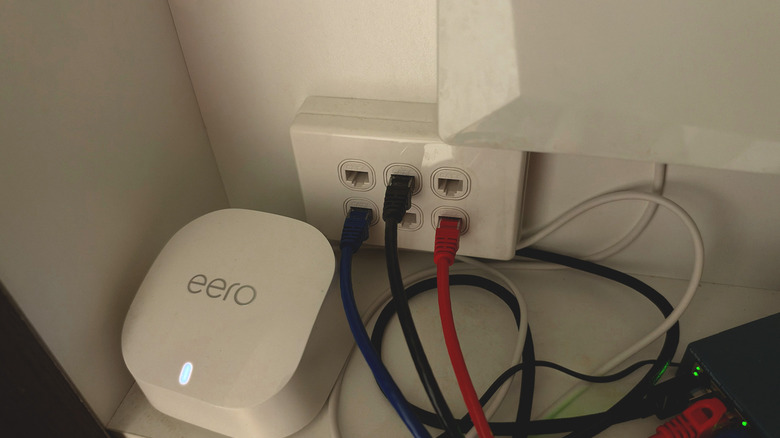
In most homes with built-in Ethernet wall outlets, the wiring terminates in a central location. This could be a utility closet, your garage, or your basement. Look for a patch panel that has multiple Ethernet ports. This is where you'll connect your network switch or router to supply a network connection. Plug an Ethernet cable into one of the ports on the patch panel and connect the other end to an available LAN port on your router. If you're looking to activate multiple Ethernet ports in your home, you can use a network switch with your router.
If you're lucky, the ports on your patch panel might be labeled, which makes it easy to find the one that connects to the Ethernet port in the room you're looking to add a wired internet connection to. However, if the ports aren't labeled, you can identify the right one through a bit of trial and error. Disconnect your laptop or computer from Wi-Fi, then connect it to the Ethernet port in your room. Next, connect the ports on the patch panel to your router or network switch one at a time until your laptop connects to the internet.
You can repeat this trick to identify the remaining Ethernet ports in your home so you can extend the benefits of a wired internet connection to other devices, too. This can be particularly useful for gaming consoles, smart TVs, and desktop computers that don't move around much.
Troubleshooting issues with Ethernet
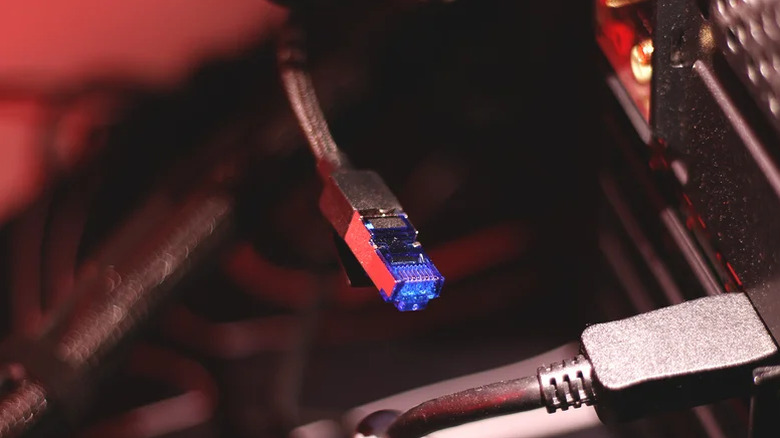
If you're unable to connect a device to the internet through one of the Ethernet ports in your wall, there are a few things worth trying before you call a professional. Start by using a different Ethernet cable. This can help rule out the possibility of a faulty Ethernet cable being the culprit. Also make sure the Ethernet cable is plugged in securely at both ends. You'll often hear a satisfying click when the connector snaps into place.
Although Ethernet is a plug-and-play technology for the most part, incorrect network settings on your computer can sometimes prevent it from working properly. You can use the Network and Internet troubleshooter on Windows or navigate to System Settings > Network to view connection status on a Mac. Both Windows and macOS generally prioritize an Ethernet connection when available, but disconnecting your device from Wi-Fi could help.
Make sure the connection at the other end is also configured properly. The Ethernet cable from the patch panel should be plugged into a LAN port on your router. If you're using a network switch, ensure it's connected to the router through an Ethernet cable and is powered on. There's also a possibility that the Ethernet port or the wiring in the wall itself is damaged, in which case an Ethernet cable tester could help identify common wiring problems. It's best to call a qualified technician if the tester detects a fault with the wiring.