

Should You Split The 2.4GHz And 5GHz Wi-Fi Bands On Your Router?
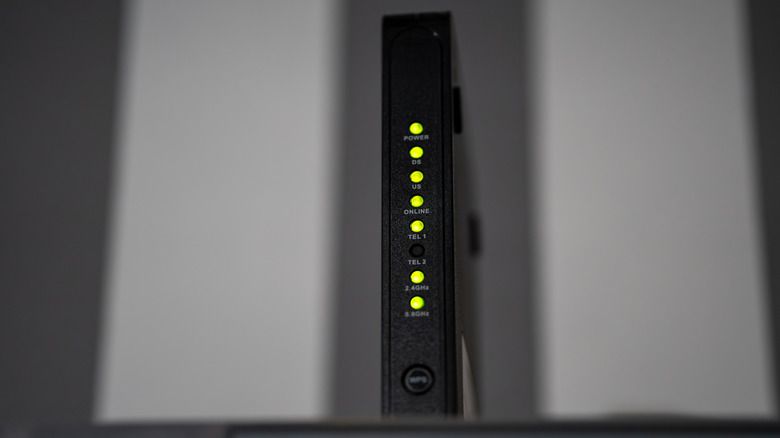
So much of our lives relies on Wi-Fi. Whether you're streaming a TV show, looking up a recipe, or reading this article, you're probably using Wi-Fi to do it. To maximize your home's Wi-Fi coverage, some of the decision comes down to getting either a dual-band or tri-band router. Dual-band are the more common models, and these routers allow that Wi-Fi signal to be sent either by a 2.4 GHz or a 5 GHz radio frequency. 2.4 GHz is slower, but more stable and can reach farther. 5 GHz is faster, but you need to be closer to the router to really take advantage of it. These routers are designed to switch your devices between the different bands depending on their needs, which is called band steering.
Some devices, like gaming consoles, should always be on that 5 GHz band, as they require much faster transfer speeds for improved download speeds and less latency. However, because of the automatic switching done by the router, your device may not always be on the most optimal band for what you want to do. For this reason, it may be a good idea for you to actually split the 2.4 GHz and 5 GHz bands on your router into totally separate SSIDs.
With this method, you dictate what device is on what band, rather than the devices deciding for you. Things like smart home devices, security cameras, or printers don't require intensive transfer speeds, so you can keep them exclusive to the 2.4 GHz band. Then, your smartphone, laptop, and tablet can all stay on the 5 GHz network, and you don't have to concern yourself with one switching to the other. This may be the best way to maximize your Wi-Fi performance, but it may not necessarily be the best for your specific needs.
The potential downsides of band splitting
There are definitely benefits to splitting your Wi-Fi bands into different SSIDs, but these benefits are not guaranteed to be felt by everyone. Most crucially, you're eliminating a great deal of convenience from your home Internet experience. Sticking to your router's default band steering and letting your devices determine which frequency they're on takes all the guesswork away from you. Yes, you may risk your device not being on the optimum frequency at some points, but that may be a fair tradeoff to some for not having to go through the hassle of band splitting. Being able to swap to 2.4 GHz automatically when your device is further away from the router, for example, can help a lot.
Band splitting means having to manually connect each and every device you own to the designated band you want it to be on. Not only does this take extra time, but you have to remember two sets of Wi-Fi passwords for connecting those devices to their respective bands. There are some cases where you need to switch a device from one to another as well. For example, if your smart home hub on the 2.4 GHz band needs adjusting, you will probably need to manually switch your smartphone from the 5 GHz band to the other one in order to connect it to the hub to make those adjustments on the hub app.
On the other hand, band steering may make this particular scenario seem smoother, but it's not a guarantee that your smartphone will automatically switch to the lower frequency band when necessary. You really need to take stock in what devices you use Wi-Fi on and, more importantly, how you use them. Then, you can determine if band splitting is right for you.
How to band split your Wi-Fi
Once you've decided, then you need to go about actually splitting the bands into their own SSIDs. To do this, you'll need to log into your router to adjust its settings. Some routers have their own app that you can do this on, while others just require you to type its IP address into a regular web browser. You can typically find the IP address on a sticker that's on your router, but if that sticker is missing or damaged to where the number's no longer there, you can still find it by going through your computer's network settings.
Once you're in your router's admin settings, look for the setting called "Wireless," "Wi-Fi," or something similar. Within there, you'll see a setting that allows you to turn on or off band splitting. If it's labeled as band steering or smart connect, that should be turned off, whereas band splitting should be turned on. All of this just depends on the specific vernacular of your particular router. After you've enabled band splitting, you'll want to rename each band to make it easy to determine which band is which. Save your new settings, and your router should restart. Once it's back online, you're free to start connecting your devices to whichever specific band you want them to use.
After trying out band splitting you may realize that it's not what you wanted and would prefer to go back to band steering. All you have to do is go back into those router admin settings and turn off band splitting. You may love it too, and many can't believe they'd do Wi-Fi any other way.