

What Is The Key With A Globe Symbol On Your iPad Or Mac's Keyboard For?
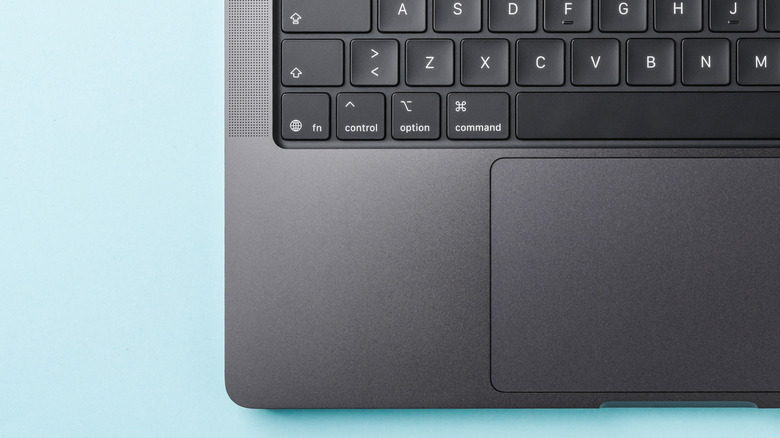
That strange little key you see on your Apple keyboard, the one with the globe symbol on it? That's the Fn key, also known as the Function key. On non-Apple-branded devices, you usually see it represented exactly like that: just the letters "Fn" on the key. But Apple does modifier keys differently. It uses that globe symbol you see on iPad or Mac keyboards.
Even though the key looks different, the purpose of this Function key is really no different. It's still a shortcut control that unlocks an additional set of keyboard commands and features. The Fn key is perhaps best known for its corresponding list of controls at the top of the keyboard: F1, F2, F3, and so on. Depending on your Apple device and its settings, pressing the Fn key can open tools such as the Character Viewer, activate voice dictation, display the Dock, or bring up other macOS features of your choosing.
On Apple keyboards, the key can typically be found in the bottom-left corner, near Control, Option, and the Alt key. Its exact placement and available functions will likely vary from keyboard model to keyboard model or operating system to operating system, but it shouldn't be far from here.
What you can do with the globe key
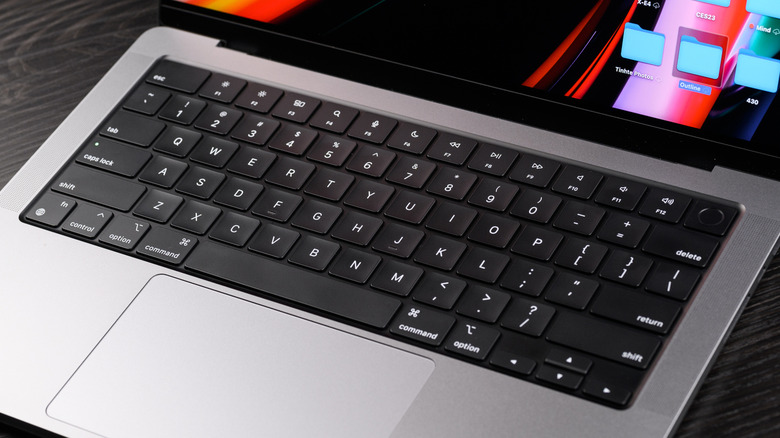
Like most other keyboards, Apple keyboards have a row of keys along the top with different symbols for different actions, including adjusting screen brightness, opening Mission Control, launching Spotlight, controlling media playback, and changing volume. These shortcuts make the important settings more accessible while still functioning as traditional keys when not paired with the Fn key.
The globe key can also be combined with keys outside of that top row. Pressing Fn-A, for example, will show or hide the Dock. Meanwhile, Fn-C toggles Control Center. Fn-D starts or stops voice dictation. Fn-N opens or closes your Notification Center. Just be aware: Not every shortcut will work the same across all your applications, and some commands will depend on your macOS version or individual keyboard settings.
If you don't want to go through the additional step of hitting the Fn key to use that top row of keys, most macOS versions will let you change your settings to make them work as standard function keys instead.