

What Does The Briefcase Symbol Mean On An Android Phone?
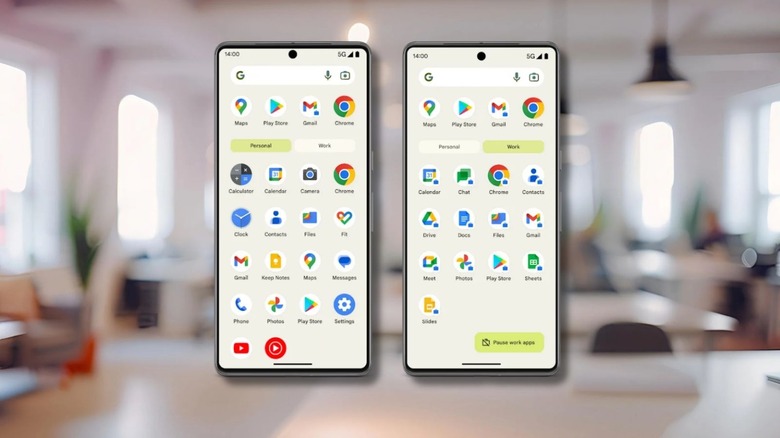
At any given time, your phone may display a variety of icons onscreen or in the notifications area to help you discern what's happening. Ejecting or using the S Pen on Samsung devices, activating NFC functionality for mobile payments, and when the microphone and camera are in use are all great examples of actions that prompt an icon, at least for Android devices.
Usually, deciphering what those symbols mean is pretty straightforward. Every once in a while, however, you might encounter one that's more puzzling than the rest. That's certainly true of a briefcase icon or symbol overlay that shows up on other icons when a distinct mode is activated. That briefcase indicates that a dedicated workspace or company profile is available and the app in question is part of that account; if you don't have a separate work profile on your phone you might never encounter the symbol.
An Android work profile, if you're not familiar, is a separate user-access profile, rather like having a separate desktop or shared user, that is specifically meant for a work-related setup. It can contain apps or sensitive data that your organization's IT team manages, phone numbers and contacts you use during work hours, and much more. It's designed to help you separate your personal and professional lives. When a work profile is active, the briefcase icon will be displayed.
Work profiles have been around a long time, since about 2015 and they were expanded in 2022. They work a lot like the private spaces most manufacturers now offer on modern phones. Everything you do, use, and save in a work profile remains wholly separate and isolated from a regular profile, including individual app data.
How do you get rid of the briefcase?

To make the briefcase icon go away all you have to do is return to your regular user profile. Most of the time, you'll know when a work profile is available because they're set up through your place of business or organization. If you set it up by accident somehow, you most likely logged into a work account or Google Workspace account associated with your work. You can swap back to your personal profile by going to Settings > System > Users or via the quick access icon for user accounts. You can also turn off profile switching under Settings > System > Users by disabling the Allow User Switch option.
To delete the profile — and get rid of the briefcase entirely — open Settings and navigate to Passwords and Accounts, go to the Work tab, and choose Remove Work Profile. A popup will appear asking you to confirm, choose Delete and wait for the process to finish. The Android Device Policy app should reflect whether or not the profile was removed. If successful, the briefcase icon should now be gone never to return, unless you reactivate a work profile. This will remove any data associated with the work profile on your device, so keep that in mind.