

What That Leaf And Lightning Bolt Symbol On Your PlayStation 5 Games Means

If you've taken a close look at your PlayStation 5's control center recently, then you might have noticed an icon appearing near certain games in the Switcher. It looks like a leaf with a lightning bolt going through the middle. What you probably won't have seen, however, is an explanation of what the icon means. It's something of a hidden feature, as the icon isn't labeled clearly on your device itself — but it's actually showing you that your game is compatible with Power Saver mode.
Power Saver was first introduced as a part of the 25.06-12.00.00 version update back in September 2025. It reduces the amount of power used by your PlayStation by dialing down your console's performance. That does mean that your games might not run as well when you have the setting enabled, but it should help you to save some electricity. According to PushSquare, the amount of power consumption it's reduced by varies depending on which game you're playing, but in some cases, it can reduce consumption by up to 50%.
It's easy to miss this setting altogether, even though it was first introduced a while ago. That's at least partially because the setting is only available on selected games and titles. So, if you haven't been playing a compatible game recently, the icon won't necessarily have appeared for you yet. For example, you can switch Power Saver mode on while playing "Marvel's Spider-Man 2", "Ghost of Yotei", or "Death Stranding 2: On The Beach", but you can't for other releases like "Resident Evil 2." You also can't use VR mode while you have Power Saver enabled.
How to enable Power Saver mode on your PS5
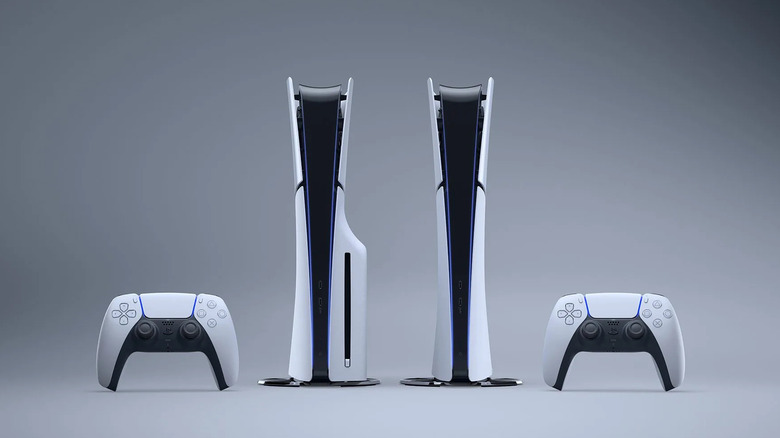
If Power Saver mode is something you didn't know your PlayStation 5 could do, then you might not know how to switch it on, either. That's understandable, as it isn't made abundantly clear what the setting is or how to use it on your console itself. But thankfully switching it on is fairly easy and can be completed in a few steps:
-
Open up your console's Settings menu.
-
Navigate to and select System.
-
Scroll to Power Saving and select it.
-
Select Power Saver For Games.
-
Toggle on Use Power Saver.
This way, Power Saver will automatically toggle on when you boot up any compatible games going forwards, until you switch it off again. Alternatively, you could try enabling Power Saver mode only for select titles. That's a useful option if you feel that some games require the extra boost of having all of your hardware performing the best it can, rather than compromising with a potentially slower console.
The process for toggling it on for individual games is similar to how you switch the mode on in general. Once you've opened the Power Saver For Games menu, scroll down past the Use Power Saver toggle. You should see a subsection labeled "Installed games that support power saver". From there, you'll be able to toggle Power Saver on or off for each compatible game you have installed. If you can't see any games there, then you most likely don't have any games that are compatible with Power Saver just yet.
How to put your PS5 in rest mode
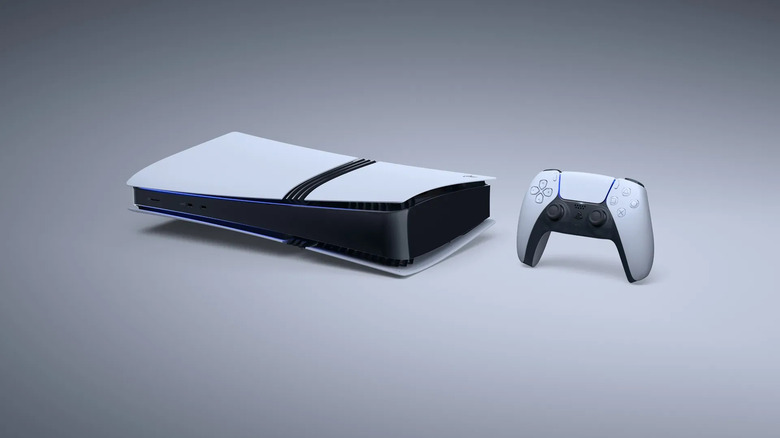
Power Saver isn't the only power efficiency option that the PlayStation 5 has to offer. You can also put it into rest mode, which effectively works as the console's standby. While in rest mode, your PS5 can still run some low-level functions, but it won't work like it usually does when it's fully switched on.
You can put your console into rest mode whenever you want by pressing the power button once. Alternatively, you can get there via the control center:
-
Grab your control and press the PS button.
-
Navigate to and select Power.
-
Toggle Enter Rest Mode.
By default, your console should go into rest mode by default if you leave it alone for a while. You can also adjust how long it takes for your PS5 to go into rest mode when inactive in your console's settings:
-
Navigate to the home screen, then open the Settings menu.
-
Select System, then Power Saving.
-
Open Set Time Until PS5 Enters Rest Mode and adjust from there.
You can also choose to turn off default rest mode altogether using the Don't Put in Rest Mode option. When you're ready to wake your PS5 back up, you can just hit the PS button on your controller or the power button on your console again.