

This Huion Electronic Notebook Inspired Me To Start My Novel (And To Doodle A Bit, Too)
We may receive a commission on purchases made from links.
I was recently contacted by Huion to test out its electronic notebook, the Huion Note E, which retails for $369, and I dove into the device as soon as it arrived. Normally, I don't use tablets, as I don't find myself needing one for my day-to-day activities, so I wasn't sure how I would utilize the Note E once I received it. Usually, when I get an idea for an article, I shoot myself an email on my phone, which made me wonder if I could write an honest review about a product I couldn't imagine a person like me needing (or wanting).
After playing with it for over a week, I can declare that I not only need the Note E in my life, but I'm wondering how I got along without it. To test the tablet, I carried it around with me everywhere I went, and when I got an idea for something, I grabbed the Note E and used its pen to write out my thoughts instead of tapping them out on my phone's keyboard like I normally do.
This proved to be remarkably useful, as I found myself coming up with more detailed concepts. This ultimately resulted in me scribbling ideas I had for a book. Like many writers, I've had a book in my head for years that's failed to manifest. Since I got the Note E, that book now has several chapters, a growing outline, and character bios, all of which I wrote down on the impressive tablet. Here's what I came up with after playing with the tablet for a while, and why I think it's useful to just about anyone and everyone.
The Huion Note E is geared for note-takers, readers, and doodlers
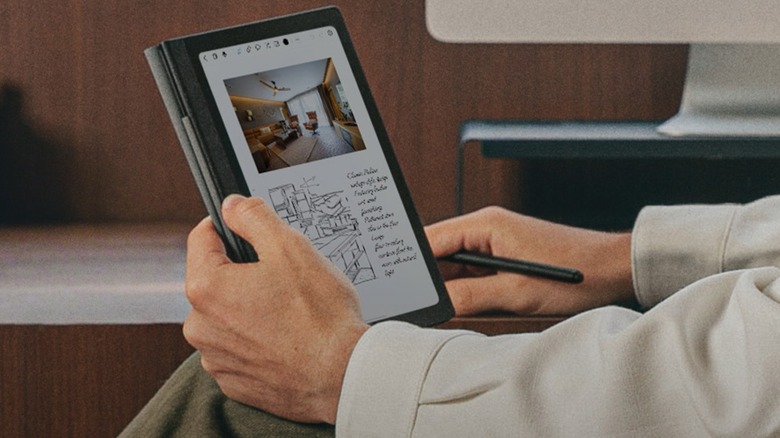
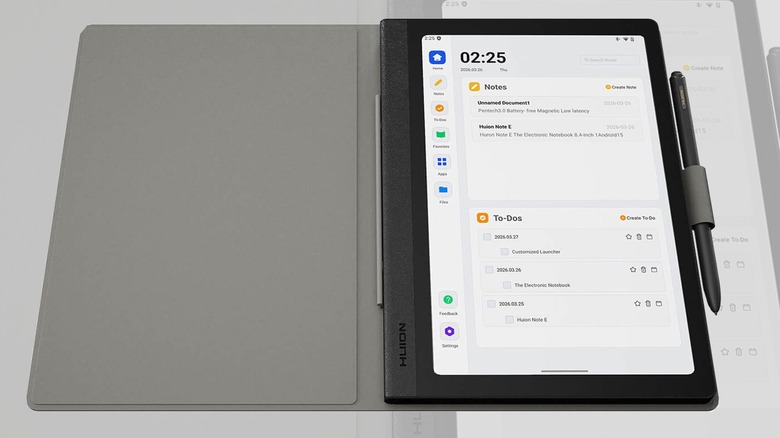
The Huion Note E isn't your typical tablet, as it's primarily meant for people who take a lot of notes — especially if they also sketch and doodle. The tablet's design mirrors that of a notebook, as it comes with a pre-installed magnetic cover, which is removable. It functions like opening a notebook, and the system wakes up when you flip back the cover. The pen stashes neatly on the side via a magnet, and the ridged design along the edge is meant to mimic a paper notebook.
The tablet features only one button, which doubles as a fingerprint reader, so it's incredibly easy to use and is intuitive. Once you set up the device with your Google account information and get it going, it's easy to find the apps you need and download the ones that don't come pre-installed. The system includes a pre-installed Huion Store app, which takes you to the company's website to buy products (that is to say, it's not an app store, but a hardware store). You'll find Google Play pre-installed, too, for all your other app needs.
This Tablet Is a Note-Taker's Dream
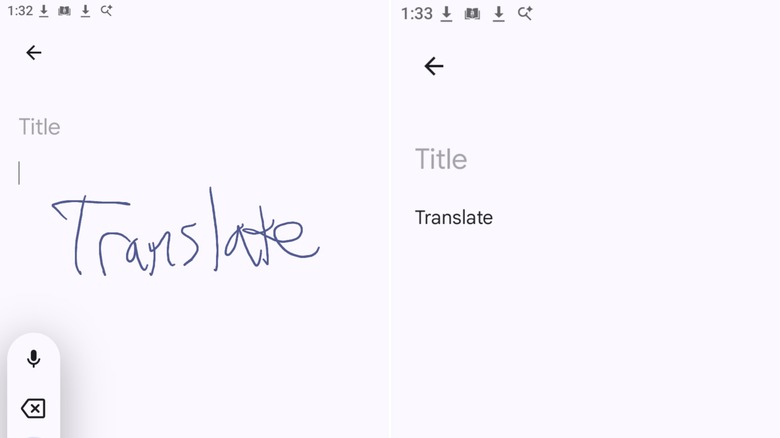
For notetaking, the easiest option for me was Google's Keep Notes. I have horrendous handwriting, as you can see above, and the tablet has no problem figuring out what I wrote within an instant of me lifting the pen. That level of functionality is what consumers have come to expect from the app, and the tablet's pen makes it all the easier to dive right into it. I also downloaded the Kindle app to see how reading on the screen worked, and it's perfect.
Huion boasts that this e-reader uses "a clearer, more responsive display than traditional E Ink displays." This makes sense, and perhaps should feel obvious due to the fact that the tablet uses an LCD display, not E Ink, in the first place.
Also, because the Note E boasts a resolution of 1920x1200, 270 PPI, a display capable of producing 16.7 million colors, and a refresh rate of 60 Hz, reading a book in color looks excellent. I have yet to try out a color E Ink display like the Kindle Colorsoft, so I cannot compare the two, but I certainly enjoyed the pop of color this display offers.
A powerful pen that doesn't need a battery
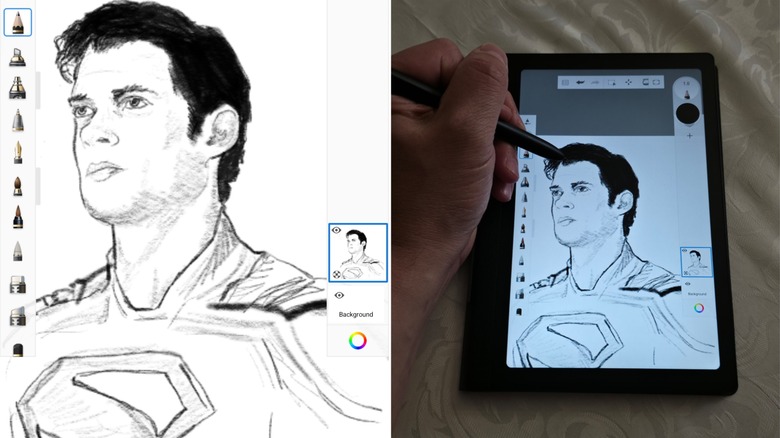
It's not unheard of for a tablet (at least, one not made by Apple) to come packaged with a stylus, but Huion takes it a step further with its PenTech 3.0 Stylus. The pen is battery-free and magnetically affixes to the right side of the tablet. I shook it several times, but the magnet holds it squarely in place, so it's difficult to lose. You'd definitely want to keep it, as the pen is incredibly useful. To test it, I powered up the device and opened the pre-packaged drawing software, HiPaint, which I didn't like.
I'm a graphic artist, so I'm pretty particular about the software I use, but it wasn't a problem. I popped over to the Google Play Store and downloaded Sketchbook to give the device a try. I then drew out a quick sketch of David Corenswet as Superman (pictured) using the pencil. This proved to be incredibly easy to use, as the pen offers several features you don't find with a typical stylus. First and foremost, it features replaceable felt nibs (you get an additional 10 nibs in the box with a removal tool) and an eraser.
The textured screen makes it feel like you're drawing on paper
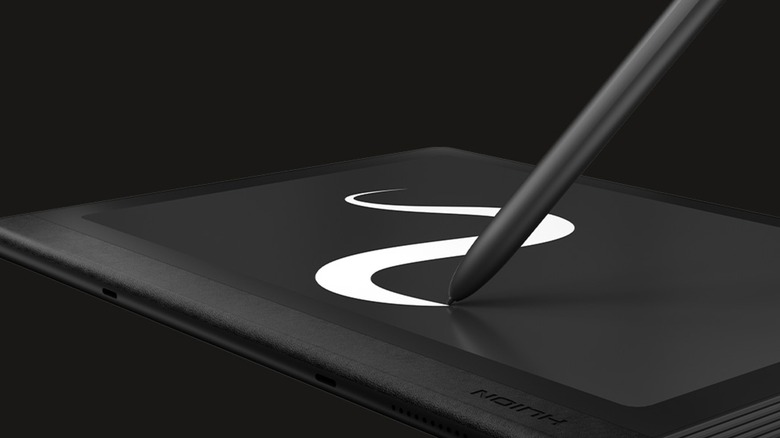
The tablet's textured display surface makes it feel like you're drawing on paper, which is something I appreciate alongside its 8,192 levels of pressure sensitivity and tilt recognition. This makes the pen ideal for illustration and photo editing despite the fact that the tablet's primary purpose is sketching out doodles and note-taking. Huion could have thrown in a regular stylus without all of the bells and whistles, but instead opted to include one that appeals to professional artists as well as general users.
One problem I've experienced with similar drawing tablets is accidentally triggering it when the palm of my hand touches the screen. The way I draw, this is an inevitability with some tablets I've used in the past, but I didn't have any issues with this one.
Huion sells a "Palm Rejection Artist Glove" for $9.99 to counter this potentiality. I've used these sorts of gloves before ... I have a drawer full of them. Still, I didn't require mine while using the tablet for writing or drawing on the Note E.
Android behind the scenes, pre-installed apps aplenty
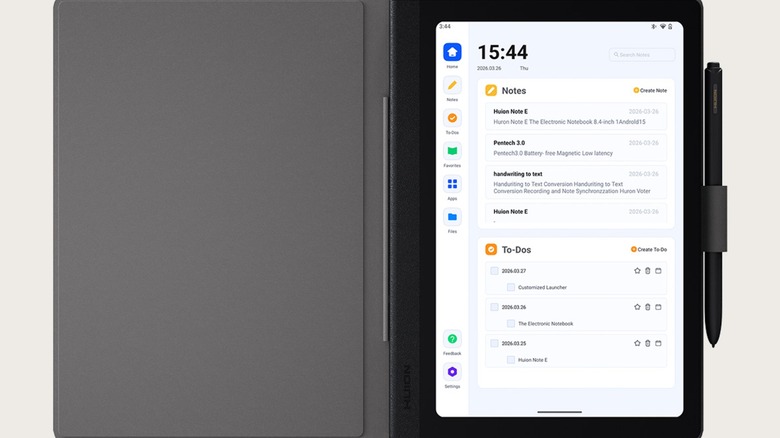
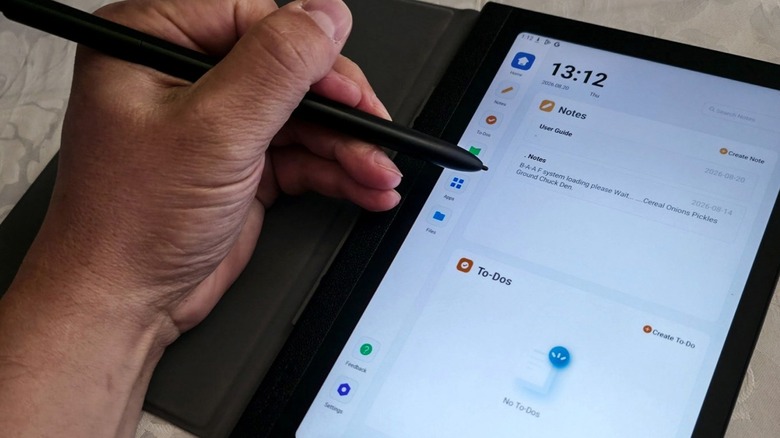
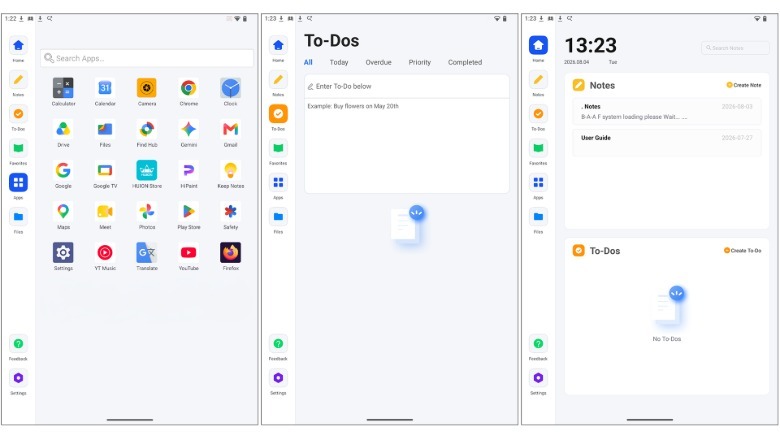
The Huion Note E runs on Android 15, so its interface is familiar, as I use Android devices. That said, it's highly intuitive, so people more familiar with iOS will have no difficulty using it. Instead of running Android 15's standard launcher, the Note E features a bespoke launcher that keeps everything focused and easy to access. Once opened, it lists Home, Notes, To-Dos, Favorites, Apps, and Files on the left of the screen. Just below these are icons for Feedback and Settings.
The Notes app is easy to use and modify to your liking, though I prefer Keep Notes. The other icons are fairly self-explanatory, so moving down to Apps, you'll find a bunch of pre-installed ones, largely provided by Google. These include Calculator, Calendar, Camera, Chrome, Clock, Drive, Files, Find Hub, Gemini, Gmail, Google, Google TV, Keep Notes, Maps, Meet, Photos, Play Store, Safety, Settings, YT Music, Translate, YouTube, and Firefox.
 Jonathan H. Kantor
Once your device is set up, it's beyond simple to access your Gmail account or whatever you desire. I tested out all of these apps, and they perform as well on the Note E as they do on my Android phone. The only issue I ran into came when I tested out some YouTube videos and games. Because the tablet only features a single power button, if you want to change the volume, you need to go into settings and do so manually. This is a bit of a pain at first, but once you take care of it (or use earbuds), it's not a problem.
The Huion Note E delivers on every one of its promises
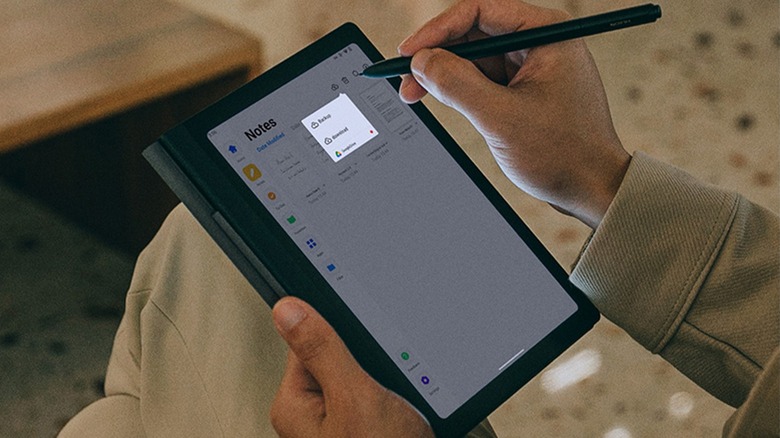
When you set your sights on buying a tablet, odds are that you're going to look for something specific that can meet your needs. There are generic tablets that do this well, and they're fine if you just need something larger than a phone screen to work with. The Huion Note E targets a specific type of consumer, and it's neither under- nor over-engineered, as it delivers on each of its promises.
If you check out the product page on Huion's website, it's clear what type of consumer the tablet targets with its description: "Huion Note E is an 8.4-inch Android electronic notebook designed for efficient digital note-taking, reading and drawing, featuring a battery-free pen that magnetically attaches to the device, providing a paper-like writing experience." In my experience, everything in that description is true, and I put the tablet through as many trials as I could think of.
The Huion Note E handles all aps with ease

As you can see above, I tried out several apps on the tablet, including YouTube, Kindle, and "Candy Crush." The YouTube videos play well on the device, and I only took the picture in portrait view so it would fit. It fills the screen in landscape, and looks excellent. I purposefully tried a colorful book on the Kindle App, and for this I selected "Star Wars Timelines," which, as you can see, looks incredible as well. I played several games on the device, including "Candy Crush," and found it just as easy to use as my phone. While these apps aren't necessarily the intended use for the tablet, they nonetheless work well on the device.
The fingerprint reader hasn't failed on me once, which makes it incredibly easy to unlock, though you can also use a PIN if you prefer. The soft-light screen is friendly on the eyes, and at no point did I feel any eye strain during use. I usually install my own launcher on Android products, but when I got a hold of the Note E, I didn't feel that it was necessary in the slightest. The bespoke launcher used on the system is arguably one of its best features, as it makes app selection, closure, recall, and more incredibly accessible.
Is the Huion Note E worth the price?
Now we get to the core issue everyone considers when it's time to buy a tablet: price. The cost for the Huion Note E is $369 on Amazon, which places it at the low- to mid-range of these kinds of tablets. I've already explained how the tablet aided me in ways I couldn't even consider prior to holding it in my hands and how it delivers on all of Huion's promises, but is it worth the money you need to spend to get one?
I believe it is, and comparing its capabilities and cost to similar tablets is indicative of that. The Boox Note Air5 C is similar, though larger at 10.3" with additional features that the Note E lacks. The Boox Note Air5 C retails on Amazon for $529.99, and while it's larger and more robust, if you're looking for something that fits into a purse or large pocket for taking notes in meetings, I'd recommend Huion's tablet.
The Viwoods Aipaper Mini Paper Tablet (as listed on Amazon) comes in at a lower cost of $343.99 on Amazon, but it lacks many of the capabilities present in the Note E.
The most recent version of the iPad mini, which is approximately the same size, costs around $569 on Amazon and starts at around $599 direct from Apple, but I don't find it quite as ideal for handwriting or sketching when compared to Huion's tablet, so it's not in the same ballpark. Finally, the one question everyone should ask is "Why should I get this when I already carry around my phone?" It's a fair question, and for me, it comes down to functionality and intended use.
My final recommendation
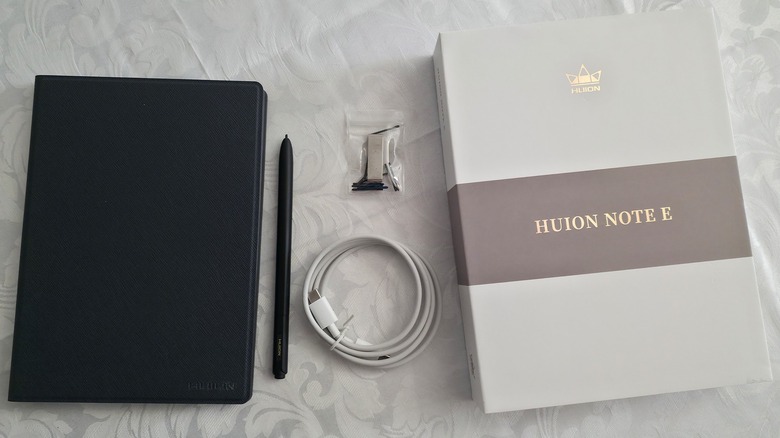
If you're the type of person who likes taking notes in meetings, doodling at your desk when you should be working, and being productive on the go, the Huion Note E delivers what you need on top of what your phone provides. A bonus to that is the interoperability between devices, so you can work on the Note E and transfer files easily between it and your phone, and vice-versa.
I make this recommendation based entirely on my own experiences using the Huion Note E provided for this review by Huion. After everything I experienced with the Huion Note E during my couple of weeks of review time, I absolutely do recommend this tablet, as it's worth the price.
You can purchase your own Huion Note E on the company's website directly for $369.00.