

What's The Minimum Free Space You Should Leave On An SSD?
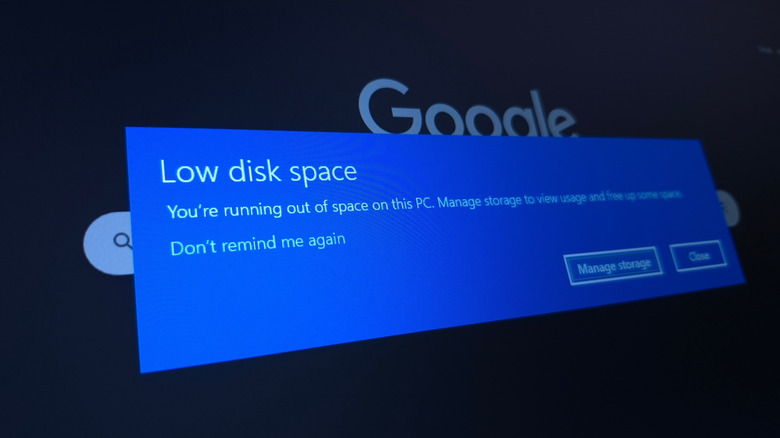
SSDs have become mainstream in the past decade, with most new computers shipping with them. Since SSDs are more reliable and faster than traditional HDDs, your PC's boot time is reduced, apps launch quickly, and the entire experience feels more streamlined. But the age-old HDD advice of leaving 15-20% free storage space is still often applied to SSDs, although they're based on an entirely different technology. And in most cases, the idea doesn't hold true. While an SSD does need some free space, it's not as high as a HDD. If you're being generous with it, set aside 15% as free space, though 5-10% works too. Even filling it to the brim won't kill your SSD, at least not right away.
Keep in mind that the amount of free space you need to set aside also depends on your plans for the SSD. If, for instance, you're using it as a backup drive to store files, photos, and games that you occasionally access, you don't need to leave as much space. But if the SSD is your system drive, i.e., it's the drive on which the operating system is installed, the minimum free space requirement increases significantly. The OS, whether it's Windows or macOS, needs some free space to create and manage cache, adjust virtual memory, or perform other background tasks. Additionally, SSDs have built-in operations that can also benefit from free space.
Why SSDs need free space
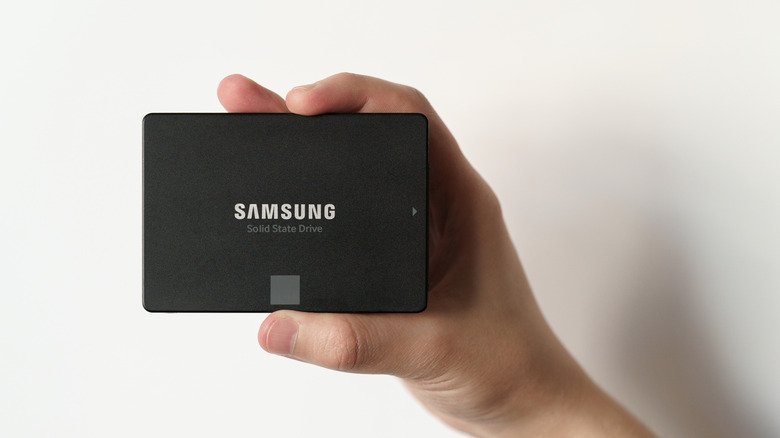
Before explaining why SSDs need free space, you need to understand how SSDs handle data. To start, your SSD can't overwrite any existing data, and while it can store data on the page level, when it comes to deleting it, the SSD operates at the block level. A block is the larger unit, comprising several pages.
Since other pages on the block may already have data, the SSD can't delete the entire block. It must first find valid data, then move it to new blocks. Once an entire block has been freed up, it's available for use again. This process is called garbage collection, and it's an integral part of SSDs. But when you have very little or practically no storage available on the SSD, it can't find space to move data around, and as a result, the performance takes a hit.
Wear leveling, as the name suggests, ensures that different parts wear out evenly, improving how long an SSD can last. The cells that store data have a limited number of P/E cycles, beyond which the risk of failure increases. Wear leveling prevents a single cell from bearing the brunt by distributing these cycles across different cells. For this to be done effectively, your SSD again needs free space.
While your SSD can technically run even when it's nearly full, you don't get the same performance because your SSD is struggling. With 10-15% free space, it has more breathing room to perform critical built-in operations. Besides, for system drives, this leaves enough space for future updates, applications, cache, and temporary files, improving the overall experience.
Tips to clear storage space on SSD
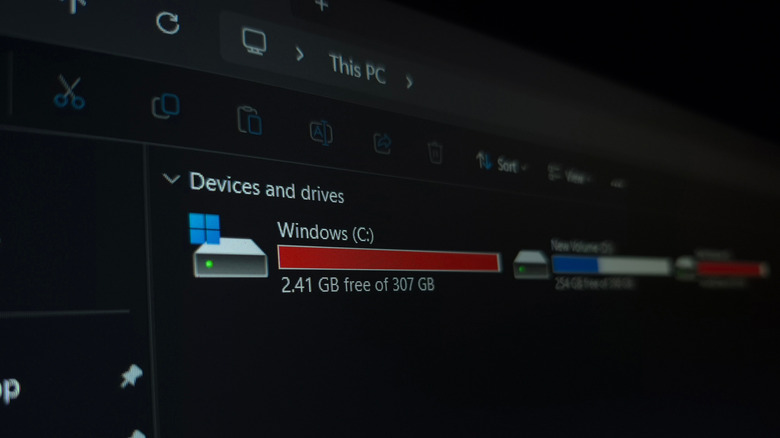
As surprising as it may sound, your SSD may have more free space than your computer shows you. This is called overprovisioning, and it refers to the storage space set aside for the operations discussed so far, alongside other maintenance tasks. This space is not available to your PC. Overprovisioning helps improve performance and extends the SSD's lifespan. However, despite overprovisioning, it's still not a good idea to completely fill your SSD, or any storage drive for that matter.
Fortunately, freeing up storage space on your Windows PC isn't as tricky as it may sound. You can use the Disk Cleanup utility or set up Storage Sense, a built-in feature that automates cleanup. Apart from that, uninstalling apps you no longer need, deleting temporary files and app cache, and disabling hibernation, are all effective ways to get more space. A similar approach works on macOS as well. And on both operating systems, opting for cloud storage or moving large files and games to an external drive can help reclaim more storage space.
Remember, as long as you have 10-15% free space on the SSD, things should work all right. Neither performance nor the lifespan stands to be affected. Anything lower than that may be fine on non-system drives that don't experience as much activity, but there should always be some breathing room if you want your SSD to stay healthy and possibly outlive your PC.