

Old Router Slowing Down Your Downloads? This One Setting Could Be The Issue
If your internet feels unstable or slow at times, it's natural to blame the ISP or the router. A router essentially handles everything and your ISP is responsible for providing fast, seamless internet. In such cases, upgrading to a high-speed internet plan or buying a new router may seem like the perfect solution. But as surprising as it may sound, these might not be the real problems. The router could just be overloaded, and as a result, struggling to deliver optimal performance. And there are typically two router settings that can help solve the problem, QoS (Quality of Service) and SQM (Smart Queue Management). If configured correctly, this will significantly reduce slowdowns, allowing you to delay the router upgrade.
Before we delve into configuring the settings, it's vital to understand why your router could be the bottleneck due to bufferbloat. Data transmitted over the internet is broken into small packets which your router handles, and it can only transmit a given number of packets at once. When traffic exceeds the available bandwidth, extra packets are stored in a memory buffer and wait for their turn. As the buffer grows, so does the time it takes for recent packets to be transmitted. This directly translates into increased latency. Regular internet speed tests don't help pinpoint the problem, because they generally check for the download and upload speeds. That's why you need to configure features like QoS and SQM.
Understanding QoS and SQM
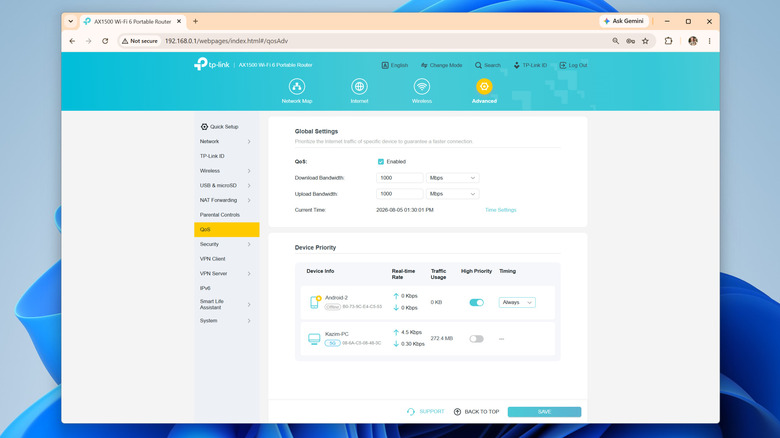
QoS or Quality of Service is a feature available on most routers that allows you to prioritize specific devices or data types on the network. For instance, you could prioritize your PC over your smartphone, or gaming over downloads and backups, and vice versa. Different router manufacturers offer different controls over QoS, but the feature is generally available on most modern routers. SQM or Smart Queue Management, on the other hand, is an advanced QoS feature designed to handle bufferbloat, which is basically the overloaded memory queue we discussed earlier. With SQM, your router prioritizes traffic from tasks that are latency-sensitive, say gaming and video calls.
If you are aiming for lower latency, SQM will help. But if download speeds are slow because multiple devices are competing for the available bandwidth, you are better off with QoS. That's because Quality of Service lets you prioritize important devices and traffic types, which in this case is downloads. Also, on older routers, SQM may not be natively available, and you may need to install an open-source router firmware like OpenWRT to set up the feature, which is a hassle for the average user.
Turning on and setting up QoS and SQM will vary based on your hardware, so check your instruction manual to know for sure (most routers have a PDF version on the manufacturer's website), but it generally goes like this: open your router's admin panel, go into the QoS section (it may be under something like Advanced Settings), turn the feature on, and configure device or traffic priority. For instance, if you actively download files on your computer, prioritize it over other resource-intensive devices on the network. On routers that grant granular controls, you can specifically prioritize downloads or file transfers over other types of traffic.
Easy tricks to speed up downloads

Beyond QoS and SQM, there are a couple of other tips and tricks that will help improve connectivity and speed up downloads. The most important of all, and perhaps the simplest, is effective router placement. If your router is far away from the connected device, the signal strength will be low, and you will subsequently notice lower download speeds. Simply bringing the router closer to the device or using a Wi-Fi range extender or a mesh network will do the trick for most.
If physically moving the router is not an option, you can consider connecting the more important devices using an Ethernet cable. When it comes to stability and consistent speeds, Ethernet is undoubtedly a better choice over Wi-Fi, although the difference is usually less noticeable on modern routers with better coverage. In case your laptop doesn't feature a LAN port, get a USB-to-Ethernet adapter to add the functionality.
Similarly, optimal band selection and minimizing interference is just as important. You should ideally have the non-critical devices, like smart plugs and security cameras, on the 2.4 GHz band, while reserving the 5 GHz band for computers, smartphones, gaming consoles, and smart TVs. As for wireless interference, move common interference-causing household appliances like microwaves and baby monitors away from both the router and the device in question.