

Here's Where You Can Find Downloads On An iPhone
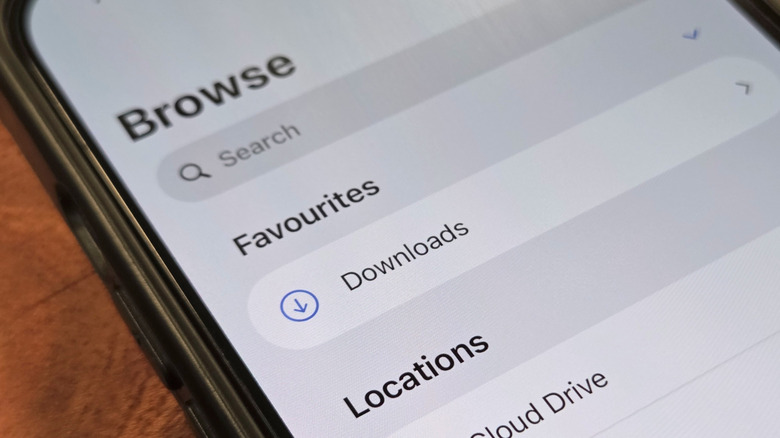
If iOS 26 confuses you sometimes about where your downloaded file went, you are certainly not alone. While most of your downloaded files can be accessed via the Files app (with the blue folder icon), they may save to different folders depending on the app they came from. Of course, the Files app can get you plenty more besides your saved files. One of the easiest ways to find your file is to swipe down from the home screen and input the file name to look it up via Spotlight search.
Otherwise, you can head straight to the Files app by launching it from the home screen and hunting for a folder labeled Downloads. If it's not directly available on the "Browse" page, you can find it under either "On My iPhone" or "iCloud Drive". Files grabbed through Safari, like a PDF or a zip file you can unzip on your iPhone, drop into the Downloads folder.
Not every downloaded file ends up in Downloads, though, which is what the Recents section is for in the Files app. Chrome, for one, has its own folder simply labeled "Chrome" that sits under On My iPhone in Files. Then there are downloaded photos and videos that tend to ignore Files entirely and end up being saved in the Photos app instead. You'll normally find them waiting under the Recents album.
Other ways to find your downloads
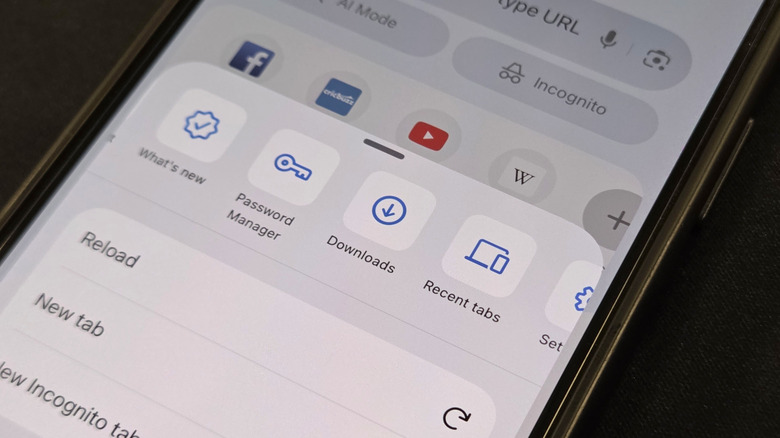
Among apps that play differently is the Mail app. In it, attachments by default are kept within the app itself unless you save them to your files. WhatsApp does the same, unless you hit the share icon and tap Save to Files. However, if it's a photo or video, it ends up in the Photos app.
Sometimes the best way to grab a file is to access it directly from the dialogue, menu, or prompt that pops up right when you download it. For instance, Safari has its own little download tray you can use to grab anything recent. You can find it on the right side of the address bar, as a little arrow. Of course, it disappears after a while, but that doesn't mean your download has disappeared as well.
If it's all a little too confusing, you can also take charge of where new downloads go starting with iOS 26. All you have to do is launch Settings, tap Apps, then Safari, then Downloads – where you'll spot multiple options. Picking On My iPhone keeps everything on your individual device, meaning it won't be accessible anywhere else. Going with iCloud Drive syncs downloaded files so they are available on iPad or Mac as well. There's an Other option as well, which lets you save downloads to any folder you like — you can even create a new folder if you'd like.