

Don't Update Your iPhone To iOS 27 Without Knowing This First
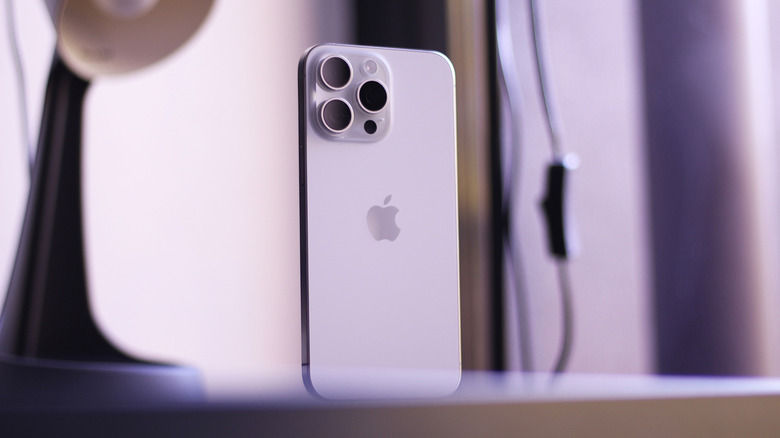
At WWDC 2026, Apple debuted the next version of the iPhone's operating system, iOS 27. The public release is set for September, but those interested can try out the new features in iOS 27 early by installing the developer preview. As it is with every beta release, however, there is always a bit of risk involved, especially if you own an older iPhone model. Multiple iPhone 15 Pro owners have been reporting bricked devices after installing the update.
The issue seems to be triggered after a force restart. Affected users have reported that their iPhones became completely unresponsive, with the display remaining black even after trying to turn the device back on or plugging it into a charger. We were able to reproduce the issue on our iPhone 15 Pro Max running the first iOS 27 developer beta. To be safe, you may want to avoid installing the first beta if you're on an iPhone 15 Pro. It's unclear whether this issue affects the non-Pro iPhone 15s.
What worked in our case, as with many others, was restoring the iPhone using a Mac or PC by sending it into DFU (Device Firmware Update) mode. Unfortunately, some users haven't been able to enter DFU mode, in which case, reaching out to Apple Support or a verified technician may be the only option.
How to fix a bricked iPhone on iOS 27
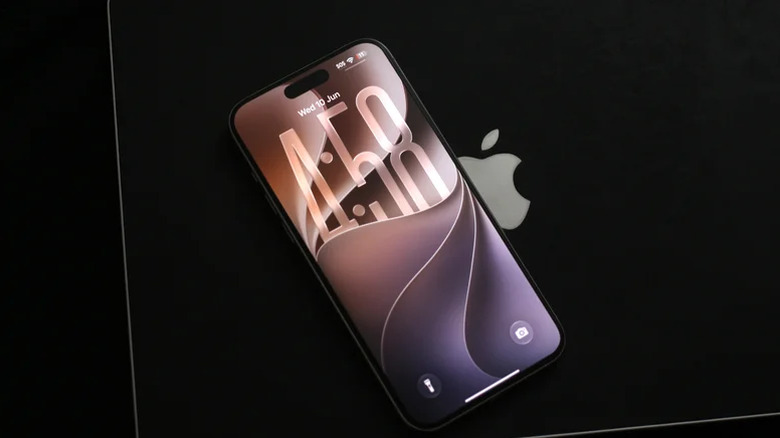
If you've recently updated to iOS 27 and ended up with a bricked iPhone, there's a decent chance that you might be able to revive it yourself. You need access to a Mac or Windows PC, an internet connection, a data cable, and some luck. Start by opening Finder on your Mac. If you're on Windows, install the Apple Devices or iTunes app and launch it. Connect your iPhone to your computer using a cable. Next, you need to enter DFU mode on your iPhone. Doing so is tricky and requires a sequence of button combinations. With your iPhone connected to your computer:
- Quickly press and release the volume up button.
- Quickly press and release the volume down button.
- Press and hold the side (power) button for five seconds, then, without releasing it, hold down the volume down button as well.
- After five seconds, release only the side button while continuing to hold down the volume down button.
The Apple Devices app or Finder should recognize your iPhone in DFU mode. Click on "Restore iPhone" and give it a while. Your device should now boot up fresh with iOS 26.5. Unfortunately, you will lose all your apps and data, and you might need to bypass the activation lock by entering your Apple ID and password. This is why you should always back up your iPhone before trying out beta builds.