

What's The Line Below The Battery Icon On Your iPhone Lock Screen For?
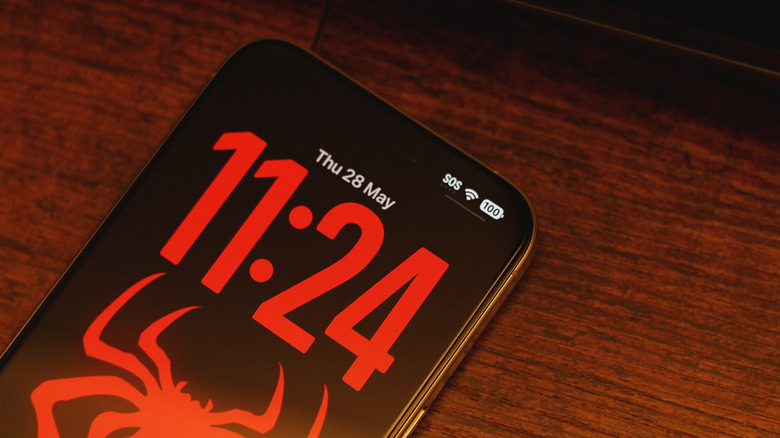
It was only a few years ago that the iPhone was ridiculed for offering next to zero customization features, barring the ability to change the wallpaper. Soon came widgets, the ability to move app icons around on the home screen freely, and recently, more lock screen customization. You can use a different font for the clock, add widgets to the lock screen, or even use wallpapers that cleverly overlap a portion of the clock for a neat depth effect. Apple's Liquid Glass design system also added a layer of transparency effects across the whole user interface.
Even with widgets and a busy wallpaper, it's pretty difficult to conjure a lock screen on the iPhone that looks bad. Those going for a minimalist look will likely stick to solid colors or subtle gradients with a widget-free layout and a bold, spacious font for the clock. Even then, you might have noticed a small UI element that manages to stand out on an otherwise clean lock screen — the tiny horizontal line below the battery icon. If you've interacted with it before, you'll realize that it is actually an indicator for the Control Center.
Just like you can swipe down from the top-right corner of your iPhone's screen inside any app, doing so on the lock screen will also bring up the Control Center. This is where you can access device controls like Wi-Fi or Bluetooth. The line simply lets you know that the gesture is available from the lock screen too.
How to get rid of the Control Center indicator
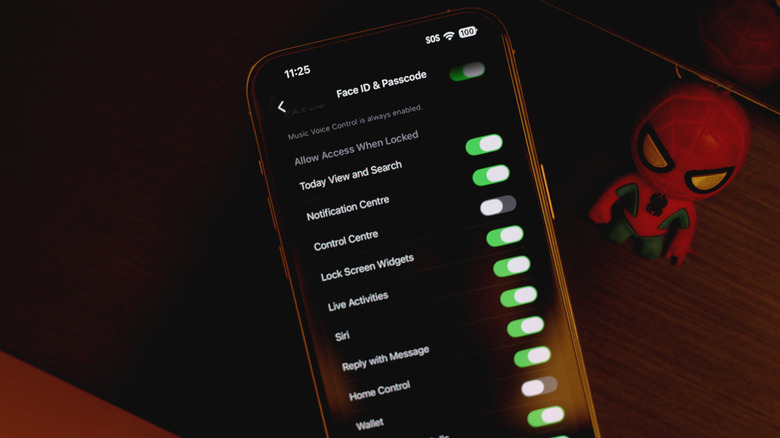
If the line below the battery indicator is ruining your lock screen aesthetic, you'll be glad to know that there is a way to remove it — though it requires disabling the Control Center when your device is locked. On your iPhone, navigate to Settings > Face ID & Passcode, scroll down, and under the "Allow Access When Locked" section, tap to disable the "Control Center" toggle. Now, the Control Center indicator will only show up when your iPhone is unlocked.
Unfortunately, this means that the indicator pops back up when your iPhone recognizes your face and unlocks the device. In practice, this would basically mean the line would only stay hidden for a split second before you pick up your iPhone and it authenticates you using Face ID. If you're still rocking an iPhone with a Touch ID sensor, though, you get to flaunt your clean lock screen for a bit longer.
That said, disabling Control Center on the lock screen is a great way to boost your iPhone's security since it only allows access to device controls when it is unlocked. In case your iPhone is stolen, the thief won't be able to toggle on Airplane Mode in hopes of preventing you from tracking it. Stolen Device Protection on iOS also strengthens things further by requiring Face ID or Touch ID authentication before major account changes or payments can be made at unfamiliar locations.