

What Is An 'Always On' USB Port & How Can You Tell If One Is Or Isn't?
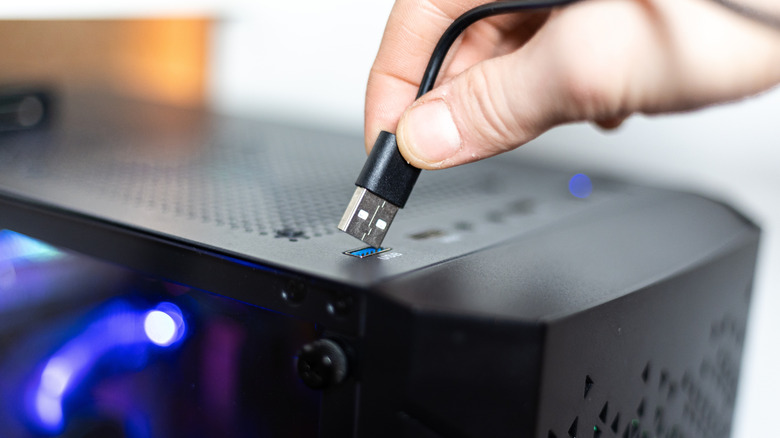
An Always On USB port is quite similar to a standard USB port, except that it is able to constantly provide power even when the main device is powered off (as long as the battery has some charge left or the device is connected to a power source). For instance, you may have a laptop or PC that lets you charge your phone without turning it on; that means your computer features an Always On USB port.
Always On ports are useful for keeping your smaller devices charged (looking at you, wireless headphones), and supplying constant power to PC and desk accessories like fans, lamps, and speakers. They're not crucial enough to separate the best laptops from the rest, but they are a nice convenience boon.
But how do you know if the ports on your PC are Always On? Some sources will tell you to look at the color of the port — and while this can provide a good indication, it's far from foolproof. Many manufacturers use proprietary port colors — like Razer with green USB ports or UGREEN with purple — regardless of Always On capabilities. Thankfully, there are a few easy ways to check for certain.
How to check for Always On USB ports

The most straightforward and conclusive way to check if your USB port is Always On is to power off the device (typically a laptop, PC, or USB docking station), then connect a USB charger and plug in something that holds charge, like your phone, smartwatch, or wireless headphones case. If your device begins charging, it's Always On. They may also have labels like "charge" or "Always On." And while you can't go on USB color alone, Always On ports are frequently red, yellow, or orange. Another solid way to check is through your laptop or PC's user manual, though this may involve sifting through a lot of technical jargon.
If you'd prefer a more computer-savvy route, you can also edit Always On ports in Windows Device Manager. To get there, type "Device Manager" into the search bar located on your taskbar. Once open, scroll down to "Universal Serial Bus controllers", which will likely be at the bottom of the list. Click the arrow on the left-hand side to expand the list of USB ports, then right-click a port and select Properties. Navigate to the Power Management tab from the top of the window. If "Allow the computer to turn off this device to save power" is already disabled, that port is Always On. If you want to force a normal port to act similar to an Always On port, untick this box – while it won't charge your devices while the computer is fully powered down, it will allow you to continue charging the device when the PC goes into Sleep mode.
How does Always On work?

Always On USB ports are pretty clever technology. If you've ever wondered how your computer "knows" to start up when you press the power button, even though its systems are powered off, you've unknowingly stumbled upon the idea behind Always On ports.
Computer power supplies utilize a method called "standby voltage," which supplies 5 volts of power to the motherboard even when the system is powered off. Always On USB ports piggyback on this power, allowing you to charge your devices when your PC is in sleep mode or fully shut down. This same tech also supplies power to peripherals like keyboards and mice, which is why your wired keyboard's backlighting can spring to life without your PC doing the same.
Typically, you'll find at least one Always On port on most modern PC motherboards. Laptops are a bit more hit or miss. But you can always check the signs you learned here to find out.