

How To Get The Max Download Speed Out Of Your iPhone
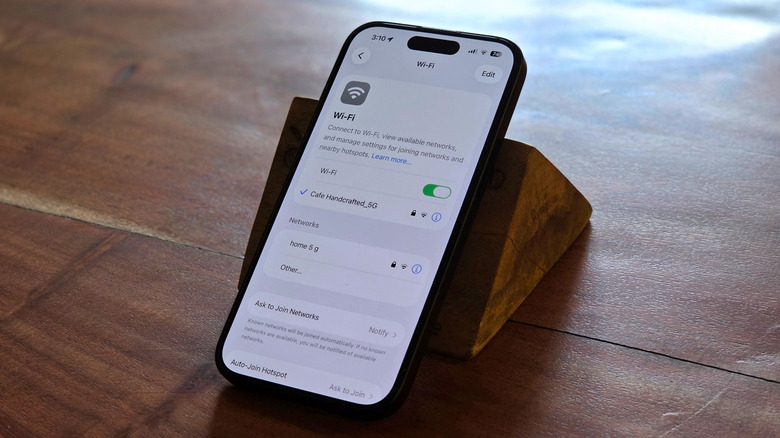
A lot of times, slow speeds on your iPhone come down to your Wi-Fi router working against you. Sure, cellular data issues play a part too, but we'll get to those later. The most common culprit you may not have realized is your phone picking the wrong Wi-Fi band. Most routers today broadcast what's called a simultaneous dual-band network. There's the 2.4GHz band and the faster 5GHz band. The catch is that once your phone latches onto one, it tends to stay there. And that pick isn't always the fastest option. Rather, it usually goes with whichever signal is strongest, which almost always means the slower 2.4GHz. But that stronger signal tops out at between 100 and 150Mbps, which is glacial by 2026 standards. So if your actual Wi-Fi speed is a lot slower than what you are paying for, as was the case for this user on Apple forums, you might want to double-check the bands.
To fix, log into your router's settings and split both bands into separate networks. Name them accordingly too so you can tell the two apart at a glance. Then get your iPhone to manually connect to 5GHz. Your phone will then have no ambiguity about which one to use. That said, 5GHz has a shorter range than 2.4GHz, so it works best when you're in the same room as the router or relatively close to it.
You can hedge against this by turning on Wi-Fi Assist. Flip it on, and your phone stops clinging to 5GHz once you wander too far for the speeds to hold up. Without it, an iPhone could sometimes hang onto a barely-there bar long past the point where cellular would be faster. Of course, you don't always have the comfort of Wi-Fi when you're out and about. But there's a similar trick for cellular too.
Sort your cellular settings (and use this one lesser-known hack)
Just like Wi-Fi bands, mobile networks come in different flavors, some faster than others. Most phones today use a hybrid setup where the 5G radio inside still leans on a legacy 4G LTE core for routing behind the scenes, and the network it settles on may not always be the quickest. To fix that, dig into Settings > Cellular > Cellular Data Options > Voice & Data and look for the 5G Standalone toggle. Flipping this on hands your traffic to a fully 5G core end to end.
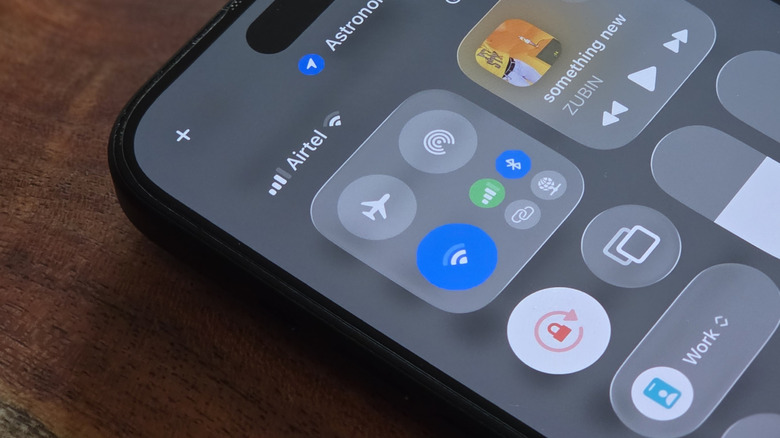
When speeds do drop for no obvious reason, even on 5G, that's when you can try toggling Airplane Mode on for 5 to 10 seconds and back off. No, this isn't just some tech myth. Doing so forces the phone to give up on a stuck network handshake and reach for a fresh cellular connection. Also make sure Low Data Mode on your iPhone is switched off under your active SIM, since it can quietly throttle your speeds. You can do so from Settings > Cellular > Cellular Data Options > Data Mode.
Finally, there's DNS, and skipping a good one is like leaving free speed on the table. Every tap on a link triggers a lookup that translates a domain name to an IP address. The system that handles that translation is called a resolver, and the default one your ISP provides is often slow or congested. Using Cloudflare's 1.1.1.1 — a free, public DNS resolver – can shave a bit off your load times. It works by routing each lookup to the geographically closest server. You can download Cloudflare's iOS app to set it up.