

What's The Lifespan Of The MacBook Neo's Battery? Here's What Apple Says

Compared to other brands, Apple prefers to keep its product catalog quite modest. For several generations now, we've had two tiers of laptops to pick from — the budget-friendly MacBook Air or the powerful MacBook Pro. Although previous models of the MacBook Air can often be bought for very attractive prices, the newly-launched MacBook Neo retails at $599 — making it the cheapest laptop Apple has ever released. It cuts some intelligent corners by utilizing the iPhone's A18 Pro SoC to power the experience. Still, you do get a premium all-aluminum chassis and a bright IPS display.
It's backed by 8GB of RAM and comes with 256GB of internal SSD storage. This doesn't sound like much, but benchmarks and reviews by experts in the industry tell a different story. Though you won't be doing 8K video editing or gaming on it, the Neo is snappy and more than good enough for students or anyone looking for a reliable everyday machine.
The MacBook Neo packs in a 36.5-watt-hour battery, which Apple claims can provide up to 16 hours of video streaming. This roughly translates to around a day of light mixed usage. It can be charged via USB-C using its included 20W charger. As for its battery's lifespan, Apple rates the Neo to last 1,000 charge cycles. If you manage to consume a full battery cycle per day, that works out to over two and a half years before your MacBook Neo's battery will likely need to be replaced.
How long will the MacBook Neo last?

To properly grasp the 1,000 charge cycle figure, it helps to first understand how battery cycles work. Your device consumes one full battery cycle when it uses up a total of 100% of its battery capacity. So, if your MacBook Neo is fully charged to 100%, and you use it until it dies, you'd have consumed one cycle. Battery cycles are calculated cumulatively — so if you use 50% of your battery one day, charge it completely, and consume 50% again the day after, it still counts as a full battery cycle.
When you hit 1,000 battery cycles on your MacBook Neo will entirely depend on how much you use it. Heavy everyday use will rack up battery cycles much faster, while lighter usage might stretch your Neo's battery life to several years. What happens after you hit 1,000 battery cycles? Fortunately, your MacBook won't magically stop functioning — but it likely won't last very long away from a charger.
It's also worth noting that the day-long battery experience you're probably enjoying right now with your MacBook Neo will start to taper off over time — long before you even hit 1,000 battery cycles. If your MacBook isn't charging, or you spot a "Service Recommended" notification, it's the right time to contact Apple for a battery replacement. This usually happens when your battery health dips below 80%.
How to check your MacBook Neo's battery health
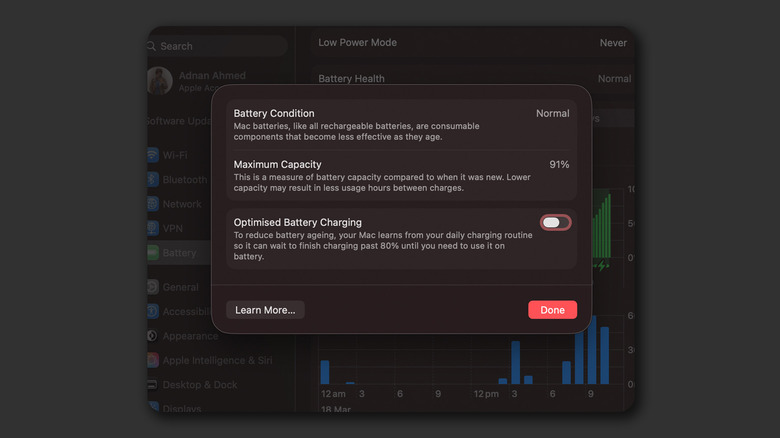
Cycle count and battery health are two separate but closely related metrics. Apple says the MacBook Neo's battery is considered "consumed" once it reaches 1,000 cycles. However, you are much more likely to dip below the 80% battery health threshold before you hit that number. The same way you can check your iPhone's battery health, you can also view how well your MacBook Neo's battery is faring. Launch the System Settings app and navigate to the "Battery" tab. In the "Battery Health" section, click the tiny "i" icon. This will display your MacBook's maximum battery capacity.
You will also find an "Optimized Battery Charging" toggle here, which learns your charging pattern over time and delays charging past 80% until it predicts you may need a full charge. Your MacBook Neo's battery health condition will change from "Normal" to "Service Recommended" when the battery's capacity drops significantly.
You can also view the exact number of cycles your MacBook Neo's battery has gone through, though this information is buried a bit deeper. Launch the System Settings app and navigate to General > About. Scroll all the way down and click "System Report." Select the "Power" tab from the sidebar, and you can view the cycle count on the right. You can also note other technical details, including your Mac's battery health, through this menu.