

Android Battery Constantly Dying? Google Chrome Could Be The Culprit

If there is one seemingly constant stress in our daily lives, it's battery anxiety. After all, if your battery is dead, your phone isn't going to be much use to you. This is especially true as the explosion of social media video has started to consume our daily lives. TikTok, Instagram Reels, YouTube and others all contribute to killing your Android phone's battery, but there's one other culprit you may not have suspected.
Google Chrome is built into the Android operating system as the default browser, and it is unique in many ways. But because it's the default, you may just use the browser without giving this a second thought. That browser can punish your battery, even when it's not open.
Google prides itself on collecting and collating your data for your convenience, and Chrome is no different. But that browser can go too far in that quest and ultimately end up hurting more than helping. There are some popular alternatives for the browser that you can explore, or there are some features you can tweak to make Chrome more battery-friendly.
It's those background processes
One of the reasons Chrome chews up so much battery is because of the background processes it's running. Every process needs to connect to the internet, poll a server, send some data, receive some data, and over the course of a day, all those little bits add up. Some users noted that Chrome could consume up to 13% of their battery in a 24-hour period.
The tricky part is that Chrome does all these things in an effort to be more helpful and to load things faster, which, on the face of it, feels like a good thing. So, in order to continue using Chrome while at the same time limiting its drain, you can pick and choose which features to disable and which to keep running, based on your needs.
The easiest way to curb Chrome's data usage is to turn off background data. Not all phones will have this option, but if you tap and hold on the Chrome icon, tap App Info, and then Data Usage, you may see a toggle that allows Chrome to use background data. You can toggle that off.
If that doesn't do the trick, or if you want to take a more nuanced approach, there are some other settings to try.
Chrome settings
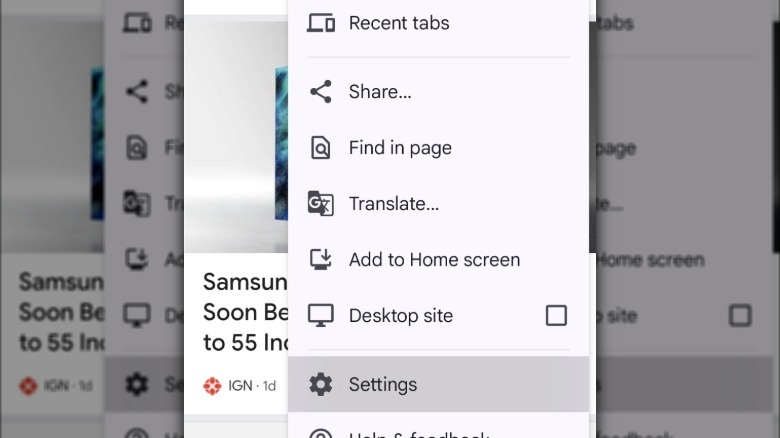
Many of Chrome's helpful but data-hungry features are located in the app's settings. You can get there by tapping the three dots in the upper right corner and then tapping settings. From there, here are some services you might want to turn off.
Web page preloading is exactly what it sounds like. Based on your browsing habits, Chrome can pre-load some elements of some sites so it can produce the site faster, if and when you decide to visit. To turn this off, go to Privacy and security, then select Preload pages, and select No preloading.
Google search suggestions appear when you start typing in the Omnibox. It takes what you're typing and autocompletes it based on what you have searched for in the past, popular searches at that time, etc. To turn this off, go to Settings, and then Google services and turn off Improve Search suggestions.
Some websites can send you notifications through Google Chrome if you opt in. You can turn those off wholesale by going to Settings, then Site Settings, and Notifications. From there, you can turn off all notifications, or you can tap on each site individually and turn the ones you don't want off.
Finally, there's cross-device sync, which, again, just like it sounds, syncs your Chrome data, such as your cookies, settings, search history, bookmarks, etc., between your devices. You can disable this by going to Settings and tapping your account name. In the sub menu, turn off any data you don't want synced to other devices.
Chrome home page settings
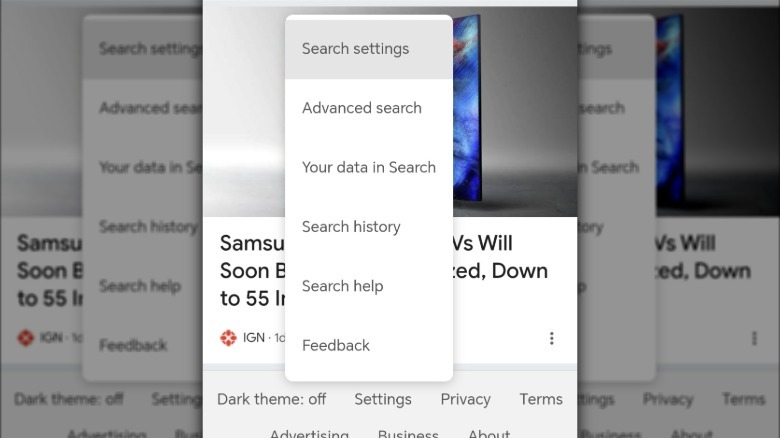
Finally, there are a couple of settings that you can change by going to the Chrome home page. You get there by opening Chrome and going to www.google.com — you may already go there by default. Either way, scroll all the way down to the bottom of the page and tap Settings.
Video autoplay is a mechanism that starts videos automatically when they load on a site. This is largely for video ads and the like, but some websites also have videos that populate and start playing automatically. You can turn them off by going to Settings, Search Settings, Other settings, and tapping Auto-play reviews. You can disable that feature entirely, or limit it to when you're connected to Wi-Fi.
While you're there, you can also turn off Trending searches, which are search terms that many people are searching for at that moment. The toggle to turn those off is right below Auto-play video previews.