

The Hidden iOS 26 Feature That Tells You When Your Camera Lens Is Dirty
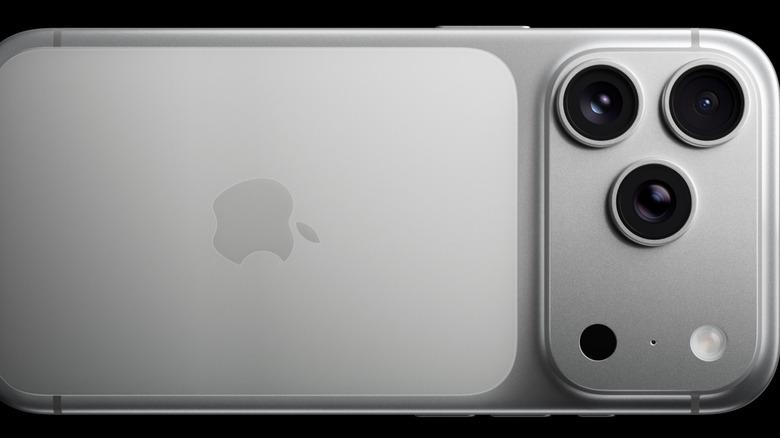
It's been a few months since Apple released the latest version of its mobile operating system. While there are a few notable pros and cons with iOS 26, the system's release has largely been met with positivity. In general, Apple has already pushed through fixes for the bugs that inevitably rear their heads along with such major upgrades.
While one of those bugs unexpectedly caused some photos taken with iOS 26 devices to turn out red, the new system has also come with a couple of camera-focused upgrades users are pretty happy with. One of those is specifically geared at ensuring your precious shots aren't ruined by another culprit that too often and too easily does get in the way of a clean shot: dirty lenses. Yes, iOS 26 comes with a new feature called "Lens Cleaning Hints," which is designed to alert users to the presence of dirt and heavy fingerprint smudges when the camera is engaged.
It does so via a pop-up warning that states, "Clean Back Camera," which appears on the screen when the lens is smudged or dirty enough to alter the quality of the photograph you're attempting to take. It will, presumably, also offer the same warning for the front camera when it is dirty. If you've ever had a cherished pic ruined by a dirty lens, you can surely understand the appeal of this feature. However, beware that it is currently only compatible with iPhone 15 or later. Here's where to find the feature on your iPhone if you have one of the models that has it.
Where to find the new camera setting
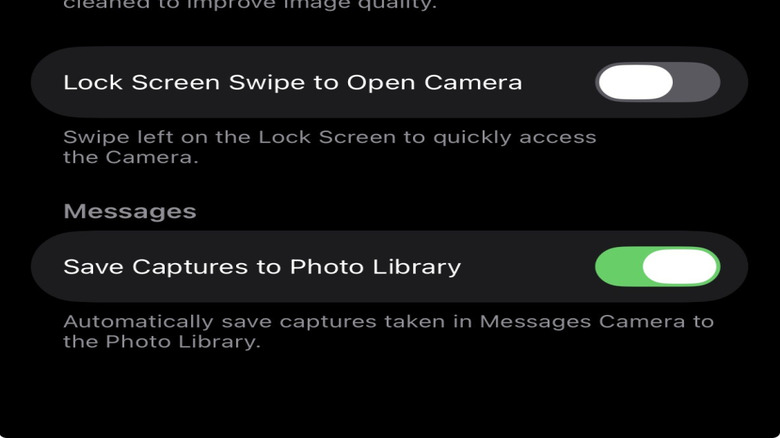
Now that you know what Lens Cleaning Hints is and how invaluable it might be to you in the photographic process, you're probably wondering whether the feature is currently engaged on your iPhone. As it stands, if you have already upgraded your iPhone 15 or later models with iOS 26, it should be up and running already. So, if you are running on iOS 26 or later and you've yet to receive a dirty lens warning — congratulations, you're taking good enough care of your device that you don't need to properly clean those lenses. If you just want to double check that the feature is active or throw your photographic fates to the wind by turning it off, follow these steps.
- Unlock your iPhone via your Passcode or Facial ID.
- On your home screen, select the Settings app.
- Scroll to and select Camera in the Settings menu.
- In the Camera menu, scroll down through the Photo Capture section until you see Lens Cleaning Hints.
- If the toggle button is green, the feature is engaged. If it's gray it isn't.
- You can personalize the setting by pressing the button to turn it on or off as you like.
Once you've sorted out your Lens Cleaning Hints setting, you might notice that there are a few other important photographic features listed alongside it, including Portraits in Photo Mode, Lens Correction, Macro Control, Prioritize Faster Shooting, and Lock Screen Swipe to Open Camera. If you like, you can adjust those settings to your personal preferences in the same fashion as the Lens Cleaning Hints. Happy shooting, iPhone friends!