

How To Set Up A Local AI Browser On Your Phone
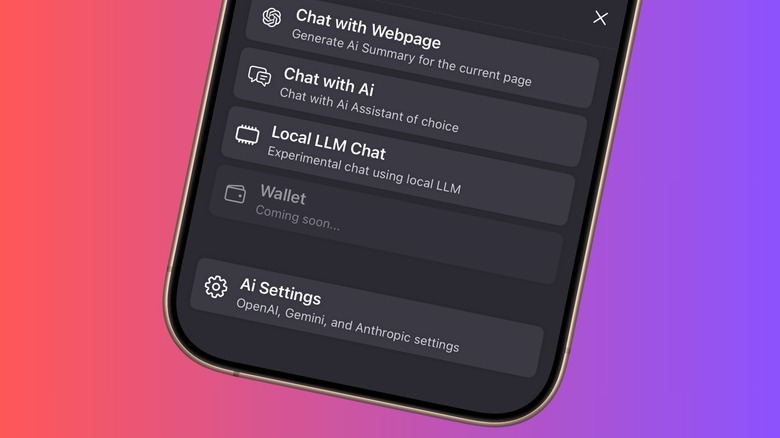
Over the past couple of years, generative AI has made its way to mainstream digital products that we push on a daily basis. From email clients to editing tools, it's deeply ingrained across a wide range of tools. Web browsers are no exception. But with the infusion of AI looms the specter of exploited privacy. Do I want my most vulnerable ChatGPT conversations to pass through OpenAI's servers, or my files to live on Microsoft's Copilot servers for a few months? For most users, the answer is a resounding no. But at the same time, it's getting increasingly harder to avoid AI in browsers, especially in the wake of the convenience on offer.
That's where local AI browsers come into the picture. Think of them as a regular web browser, but one where the AI assistant runs entirely on your device rather than sending your queries to a cloud server. Broadly, it's like interacting with Gemini Nano on the Pixel 10 Pro, where Google's AI can even handle a few chores without even requiring an internet connection. But using on-device AI on a local browser isn't a straightforward process. But more importantly, you need to pick a browser that lets you run an AI model locally on the device. Based on the community feedback, the most buzzy local AI browser appears to be Puma.
Available on Android and iOS, this privacy-centric browser lets users drift away from Google's stronghold and lets you pick between Ecosia and DuckDuckGo as your search engines. More importantly, it lets you run local instances of Llama 3.2, Ministral, Gemma, and Qwen series AI models entirely on the device. So, whether it's a generic knowledge query or an at-hand chore like restyling and summarization, no interaction ever leaves your phone.
The setup
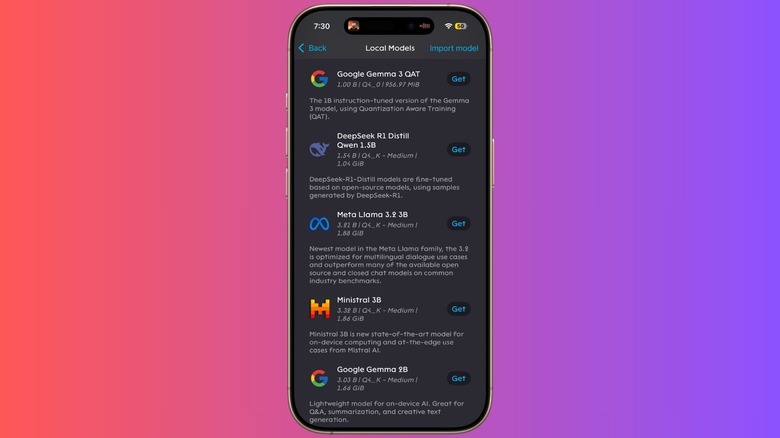
When you first install the Puma browser, it already has Meta's open-source Llama 3.2 model set up and running. But if you want to download another AI model, follow these steps:
- On the browser homepage, tap on the Puma icon at the bottom.
- In the slider menu that pops up, tap on the Local LLM Chat option.
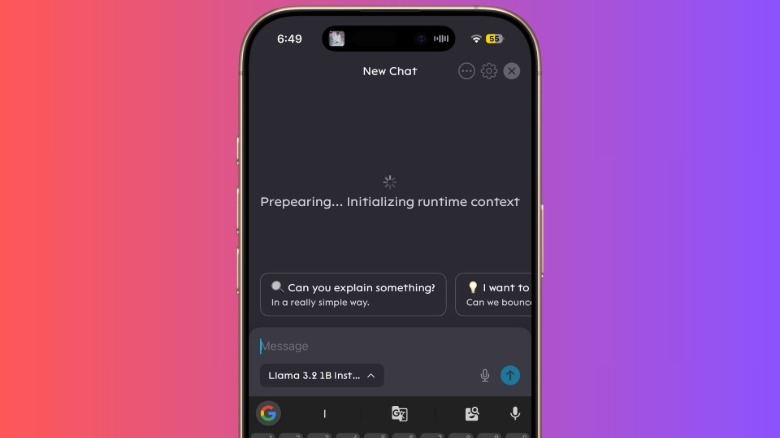
- On the chat page, click on the button that says "Llama 3.2 1B" in the composer field.
- Tapping on it opens a list of the available local AI models. After the first installation, only Llama 3.2 1B Instruct is available. Select the "More models" option.
- On the next page, you will see a whole list of models, including Google Gemma, Mistral, DeepSeek, Qwen, Microsoft Phi, and more. Select the "Get" button corresponding to the AI model you prefer, and it will be downloaded and installed.
Most models are over 1GB in size, so they will take some time to download and install on your phone. And of course, the more adventurous you get, the more storage they are going to hog. Once the AI model has been configured, you can go back to the local LLM chat option, pick the model of your choice, and start a conversation.
 Nadeem Sarwar/SlashGear
Now, the bigger question is, why would you want a local AI model when you can simply use ChatGPT or Gemini apps? Or avoid that entirely by summoning Gemini as the default assistant on Android phones, or ChatGPT (via Siri and Apple Intelligence) on your iPhone? Well, privacy is the obvious answer. However, there are times when you may not have an internet connection handy, or simply have enabled Offline mode for focused work. For such scenarios, these local AI models come in handy as they can handle their job without any connection requirements. The only caveat is that they can't pull off snazzy tricks such as image generation locally. Moreover, unlike the Google AI Edge Gallery app, Puma browser doesn't let you customize the AI workload across CPU and GPU, or adjust aspects such as sapling and temperature.