

Which Xbox Controllers Are Compatible With Samsung TVs?
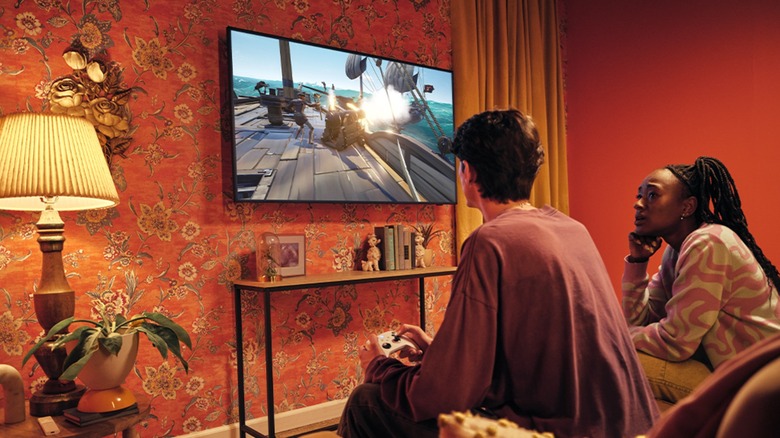
Can't find the remote for your smart TV? Don't rush to buy a new one — you might already have a solution if you have an Xbox controller lying around. You have a few options to choose from if you want to use your Xbox controller with your Samsung smart TV. The Bluetooth-enabled Xbox Wireless Controller, Xbox Elite Wireless Controller Series 2, and Xbox Wireless Controller with Share button that came with Xbox Series X|S models are all compatible with Samsung TVs over either a wireless or wired connection. You can also use the Xbox Adaptive Controller and even the older Xbox 360 controller. However, if you opt for re-purposing a 360 controller, you'll have to rely on hooking it up via USB. Otherwise, you can just connect your controller to your TV via Bluetooth.
While it's relatively easy to wirelessly use your TV's remote control with your Xbox Series X|S, using an Xbox controller through a wired connection is the most straightforward option for pairing it with your smart TV. You just need to plug the corresponding cable into your controller, like you usually would, then connect the other end of the cable to one of your smart TV's USB ports. The placement of your USB port might end up being a problem, though, if your controller's cable isn't long enough or your TV is especially far away from your couch. Once you're connected, using your controller to flick through your TV's interface should be fairly intuitive, with your left-stick and D-pad controlling most of the navigation and the right-stick handling your volume and channel control. And with Samsung expanding support for Xbox Cloud Gaming, you might even be able to play Xbox games straight through your TV on some Samsung models.
How to connect your Xbox wireless controller to your smart TV
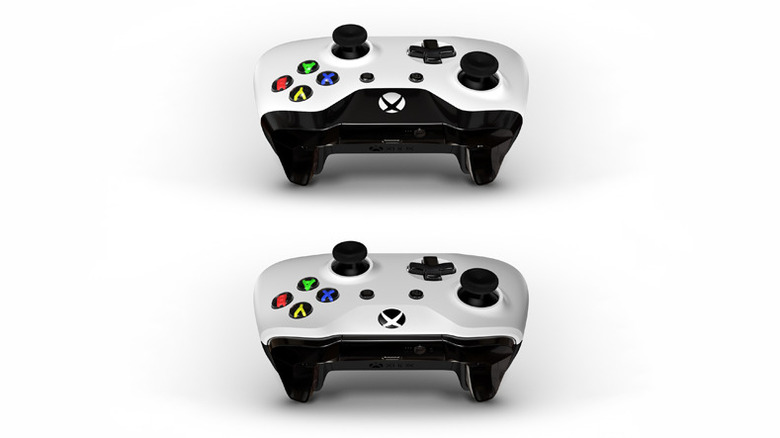
Connecting a wireless Xbox One controller to your smart TV is slightly trickier than the plug-and-play method offered by a wired controller, but it's still entirely possible. Moreover, it only takes a few minutes to set up. You'll need to have a Samsung 2020 smart TV or newer with the Xbox app installed and updated, as well as a compatible wireless Xbox controller. You'll also need to have your smart TV remote handy to set it up — if you're looking to use a controller because it's missing, then you're better off sticking to the wired method.
Switch on your Samsung smart TV and install the Xbox app, or open it up if you've already got it. Then, grab your remote and:
-
Navigate to the top of the screen and select the Controller option.
-
Select Pair a controller.
-
Choose your controller from the list of options.
-
Hold the pair button on the top of your controller until the Xbox logo on the front lights up.
-
Back on your TV's Xbox app, select the Pair with TV option under the list of Bluetooth devices.
-
Select your controller, and follow the steps set out by the pairing wizard on your TV.
These steps should connect your wireless controller to your Samsung TV via Bluetooth. This is just like when you pair your controller up with your Xbox One, or Series X|S, when you first use it. It's also similar to connecting a set of Bluetooth headphones to your Samsung smart TV, besides the fact that you need to have the Xbox app installed on your smart TV.
Troubleshooting your Xbox controller's smart TV connection
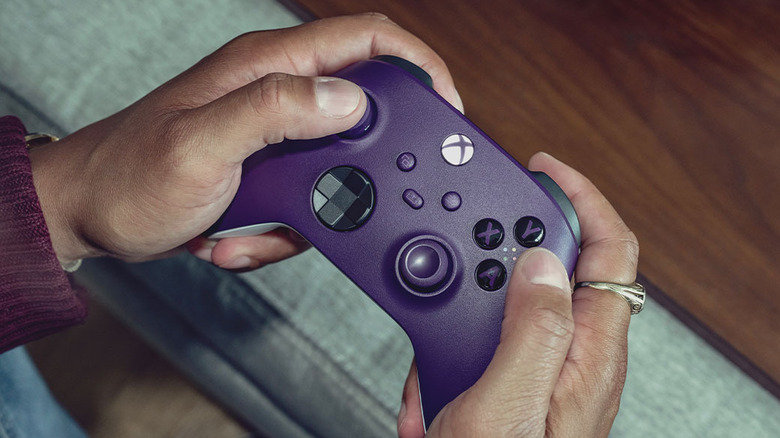
If you're having a hard time connecting your Xbox controller to your smart TV, then there's probably one of a few culprits. It could be that your Samsung TV isn't new enough to support controller connections or that your controller isn't compatible. In the case that you're struggling with a wireless connection, then a possible issue is that your controller isn't Bluetooth-enabled. Older wireless Xbox controllers didn't have Bluetooth built in, meaning they won't be able to connect wirelessly to your TV.
Alternatively, if you're sure you have a compatible controller but it still won't connect, then you could try refreshing your TV while it's in pairing mode or updating your Xbox wireless controller's firmware. Follow the steps outlined earlier, but this time select Refresh on your TV while your Xbox controller is in pairing mode. Check the Bluetooth device list again to see if your controller appears.
Updating your controller's firmware is a little harder, but if you're having trouble connecting your controller then it's worth a shot. Updating your firmware can help your controller work more reliably on your computer or console, too. Plugging your controller into your console should automatically prompt an update if one is due. Alternatively, you can plug it into your PC and follow a prompt from the Xbox Accessories app. Or, if you don't have a cable to hand, then you can update it wirelessly via your Xbox One or Series X|S console:
-
Tap the Xbox button on the front of your controller.
-
Select Profile & system, Settings, Devices & connections, then Controllers & headsets to open the Xbox Wireless Controller menu.
-
Find your controller and select the three dots to see which firmware you're running.
-
If available, select Update and Firmware version before following the updater wizard.