

What Does The Green Chain Link Icon Mean On Your iPhone Status Bar?
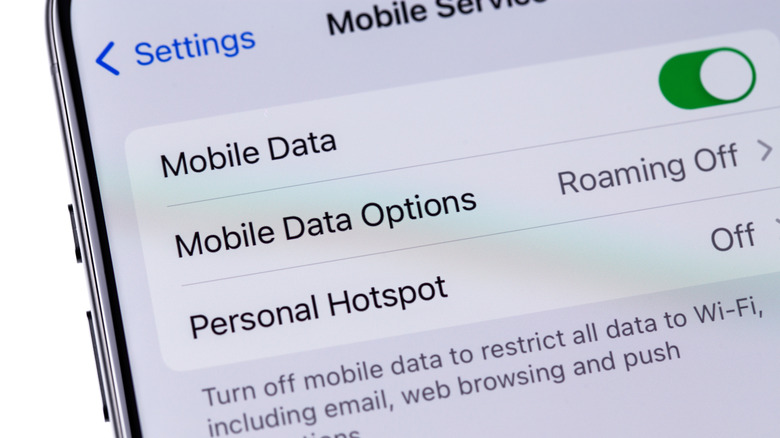
It's hard to keep track of the meaning of all of the different icons and symbols that appear on your phone, especially when the meaning isn't immediately self-explanatory. But the green chain link icon on your iPhone's status bar has a simple cause: you're sharing your iPhone's Personal Hotspot. That means that other devices can essentially piggyback onto your data plan to access the internet. It's kind of like your phone is working as a portable Wi-Fi router for devices that you let connect to it.
When you have Personal Hotspot enabled, you can tether other Wi-Fi-enabled devices to your iPhone using your hotspot's password, including your laptop, tablet, or even another smartphone. It's made even easier if you own other Apple products like an iPad or Apple TV, thanks to the Instant Hotspot feature. Instant Hotspot allows compatible Apple devices that are logged into the same Apple account or are part of a Family Sharing group to connect instantly without using a password.
Exactly just how many devices you can expect to connect to your hotspot at once depends on your iPhone model and carrier. You can easily see who's connected to your iPhone's hotspot a few different ways. You can also check your iPhone's data usage in Settings, so you can stay on top of it and avoid running out of data while using your hotspot.
How to rename and change the password for your iPhone hotspot
You have a couple of different options for managing and customizing your iPhone's hotspot. Namely, you can change the name your hotspot displays to others, as well as its password. The name of your hotspot is always the same as the name of your device. So, for example, if you named your iPhone after yourself, then that's how it would appear to everyone else who tried to connect to it, and you'd have to rename your device to change that. Thankfully, renaming your device is easy:
-
Unlock your phone and open Settings.
-
Select General.
-
Navigate to About and select it.
-
Select Name, and rename your device.
Changing your hotspot's password is similarly easy. Much like changing your device name, you can access it via your phone's settings:
-
Tap Personal Hotspot.
-
Navigate to and select Wi-Fi Password.
-
Enter your desired password using the keyboard.
-
Select Done.
Your password has to be at least eight characters long. They need to be ASCII characters, which can include letters in the English alphabet, numbers, and selected punctuation marks like question marks and exclamation points. You can also use either uppercase or lowercase letters, or a mixture of the two, which can help to improve your overall password security. Just keep in mind that whatever it is, other people will need to type it in to access your hotspot, unless you're using the Instant Hotspot feature.
How to set up Instant Hotspot on your iPhone
Instant Hotspot makes it easier for you to connect your other Apple devices to your hotspot without typing in your password. While it makes things easier and more streamlined, you do still need to take a moment to set it up correctly before you can dive into using it. First, you need to make sure your devices are signed in to the same Apple Account and have Wi-Fi and Bluetooth turned on.
The next step is where it gets slightly more difficult, as you need to change the settings for each of your other devices. Apple devices have a couple of options in their Wi-Fi settings that you need to look out for. They can either be set to Ask to Join or Automatic, and if you want your devices to connect through Instant Hotspot automatically, then the latter is better. Once you've changed it to Automatic, your devices should connect easily through Instant Hotspot without you having to do anything else.
The process for connecting over Family Sharing is slightly different. Grab the device you're using as a hotspot and open Settings, and then:
-
Navigate to and select Personal Hotspot.
-
Select Family Sharing.
-
Turn on Family Sharing.
Now that you have it switched on, you can manage whether other users in your Family Sharing group are set to Ask for Approval or Automatic. These settings work almost the same as the other Instant Hotspot options, with any users set to Ask for Approval needing to be approved through a pop-up on your device.