

Here's A Reason Why Speed Limits May Not Be Showing Up On Google Maps For You
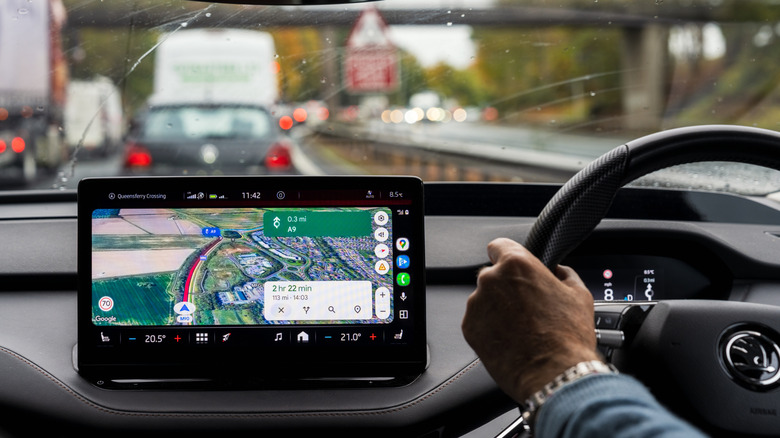
Staying under legal speed limits is one of the most basic things that drivers learn to do. However, there are times when there are no speed limit signs around, which can cause problems. That's because the absence of a sign doesn't mean there's no speed limit. Thankfully, apps like Google Maps show speed limits, which can help keep you from getting fined when driving in new areas. The problem is, sometimes that feature doesn't show up.
There are several reasons why the speed limit option might be missing from Google Maps. First, it's possible the country you're in doesn't support this feature yet. While it's highly likely you'll be able to get it in some major cities, there's a chance you won't see it if you're traveling to rural locations. Second, you might be using an older version of Google Maps that doesn't have this feature. To solve this, all you have to do is update your app. Third, it's possible Google Maps has not accurately mapped the area, making speed limit data hard to get, even within the same jurisdiction. With some cities using strange signs, like those with decimal points, things can get confusing. Lastly, maybe you just haven't enabled this feature or other related speed features on your device. If the latter is the problem, here's how you can do it.
How to enable speed limits on Google Maps
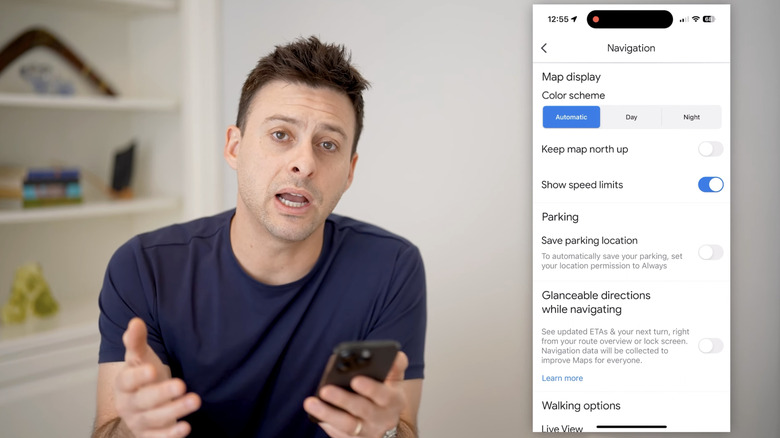
If you haven't enabled the speed limit option on Google Maps, all you need to do is open the app, then tap your profile picture in the upper right corner of the screen and select Settings. Under Getting Around, tap Navigation. Lastly, toggle the button next to Show speed limits. Besides the speed limit, you can also turn on the speedometer function to compare your speed to the posted limit while driving. To do this, scroll down from the Navigation tab. Under the Map display, toggle the button next to Show speedometer. Just make sure you don't treat it as definitive, since it may not always match your vehicle's speedometer.
Keep in mind that Google Maps isn't a perfect solution, especially since its accuracy depends on a lot of factors. Google's Roads API documentation says, "The accuracy of speed limit data returned by the Roads API cannot be guaranteed. The speed limit data provided is not real-time, and may be estimated, inaccurate, incomplete, or outdated." As of June 2026, it lists more than 40 countries and regions, which it says have good data quality and availability under its coverage details. And that doesn't guarantee that the data will remain accurate forever.
Tips for staying under the speed limit
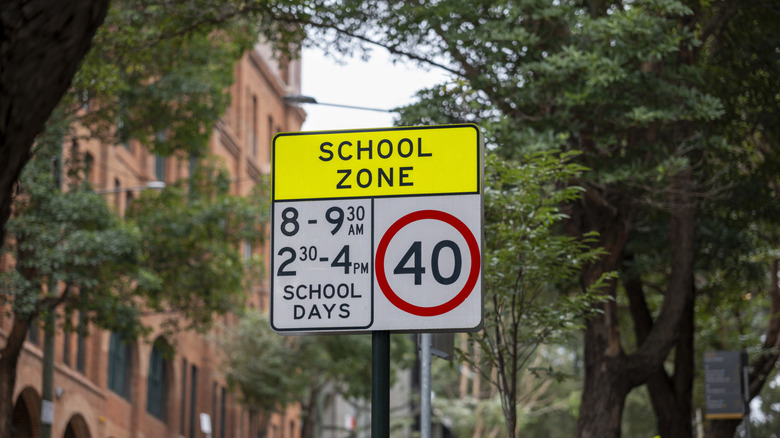
One way to make sure you're under the speed limit is to do your research, especially if you know the Google Maps speed limit feature doesn't work where you're going. If you'll be driving through multiple countries, take note of local regulations, especially when driving on highways or in residential zones. It's also good to be alert, since some speed limits change depending on the time of day. For example, school zones may have a different speed limit during pickup and drop-off times. It can even be more challenging if you're traveling to countries like France, where some speed limits change based on the weather. You should also pay attention to construction sites and animal crossings, which may require you to slow down and won't always show up in apps like Google Maps.
That said, if you're already planning to use Google Maps for an upcoming cross-country road trip, other tips you need to know that can come in handy. For example, you can download offline maps for areas with poor data connections or add multiple stops to make your route more exciting. You can even make use of live traffic updates to avoid unexpected delays from accidents or closures.