

How To Set Up An Xbox Controller On Your TV With Bluetooth
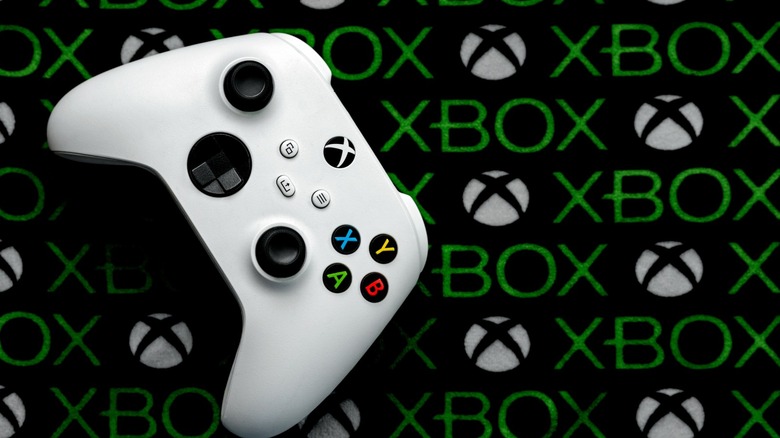
When it comes to console gaming, both PlayStation and Xbox deliver high-fidelity titles like "Red Dead Redemption 2" and "Arc Raiders" at a price point that's tough to match with a similarly spec'd gaming PC. You also get controllers with your console, which inarguably offer a more relaxed gaming experience. The Xbox Elite Controller Series 2 and the PlayStation 5 DualSense are regarded as some of the best game controllers of all time.
Both game controllers can also be used when gaming on PC, but did you know you can play games on your smart TV, even without the console hooked up? Thanks to advancements in cloud gaming, the Xbox app on supported smart TVs lets you stream your favorite titles. This may come in handy if you have a television in another room, away from your console.
There are more creative ways to use an Xbox controller, but being able to connect one to your TV is a more practical application. A wide range of Xbox controllers is supported, including the Xbox 360 wired controller. You can connect your Xbox controller via USB or Bluetooth, but the latter offers greater convenience and freedom to move around.
Steps to connect an Xbox controller to your TV
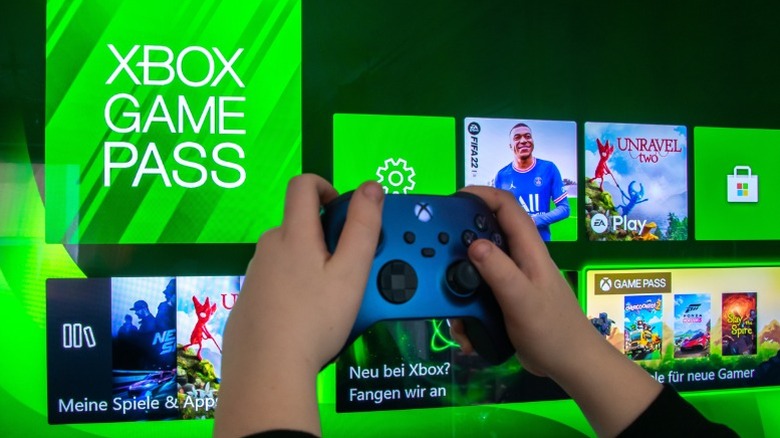
Smart TVs from LG and Samsung, and streaming sticks from Amazon, ship with the Xbox app that lets you stream games over the cloud. If you have the app available, follow these steps to pair an Xbox controller to your smart TV:
- Launch the Xbox app on your TV using its remote control. If this is your first time using the app, you will need to log in to your Xbox account.
- Select the controller icon at the top of the screen, and pick the "Pair a controller" option.
- You will be displayed a list of supported controllers. Select "Xbox" from these options.
- Now, turn on your Xbox controller and enter pairing mode by holding down the Pair button for three seconds. The Xbox button on your controller should start flashing.
- Using your TV's remote, select the "Pair with TV" option. This will pop open the Bluetooth device list.
- Select your controller — it should connect to your TV in a few seconds.
The Xbox app will then display optional instructions for using the controller to use the app on your TV. Outside the Xbox app, you can use the paired controller to navigate around your smart TV UI as well. If you don't have the dedicated Xbox app on your smart TV, you can still pair your controller the traditional way by going to Bluetooth settings.