

SteelSeries Sensei Pro X Rival Pro Review: 8K Wireless Mice With 'Infinite' Battery Life
We may receive a commission on purchases made from links.
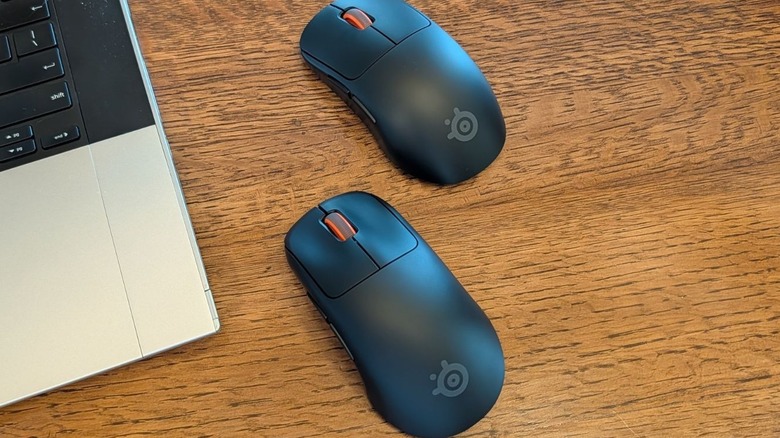
SteelSeries adds to its lineup of gaming mice with the Rival Pro and Sensei Pro, two wireless mice that both boast 8K ultra-wideband (UWB) connectivity, an incredibly lightweight design, and a swappable battery system that essentially gives you "infinite" battery life. The Sensei Pro features a symmetrical design that's perfect for either left- or right-handed use and the Rival Pro sports an ergonomic shape that's designed with right-handed users in mind, but other than this design difference (and subsequently, a minor size difference), these two gaming mice are identical.
Both the Rival Pro and Sensei Pro are priced fairly high at $179.99, and that's the same price you'll pay for the full-size models or the Mini variants. Both the Rival Pro and its Mini model, along with the Sensei Pro and its Mini model, are available in two colors: black and white. SteelSeries provided me with a black Rival Pro and a black Sensei Pro for testing and, after spending about a week with both mice, I can confidently dive into my favorite features as well as a few things I disliked.
Speedy setup with PC and console connectivity
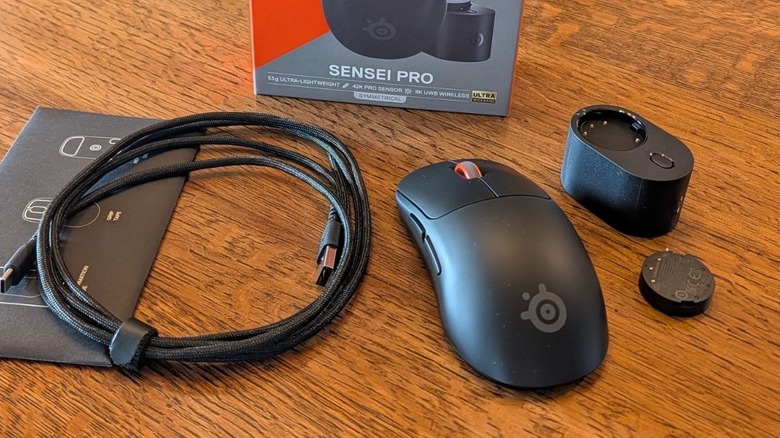
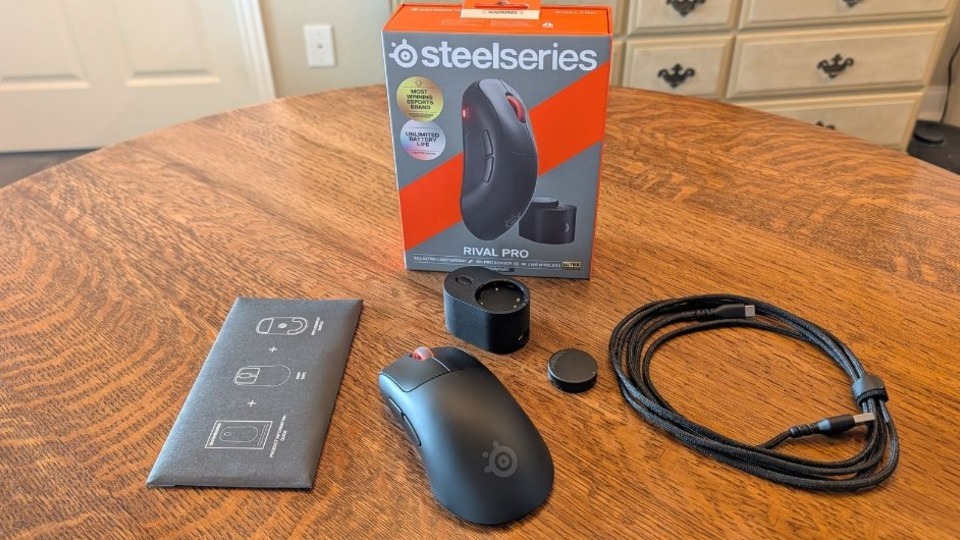
Both the Rival Pro and Sensei Pro mice from Steelseries offer ultra-wideband (UWB) connectivity via a USB-C to USB-A cable and a base receiver station. With a plug-and-play setup, both mice were ready for use within just a few minutes of unboxing. The included cable's USB-C side connects to the base station and the USB-A side can connect to either a PC, an Xbox Series X or S, or a PS5, though Steelseries notes that consoles might not support all features.
 Sarah Chaney/SlashGear
With the base station plugged into your device, you can lock in the extra battery puck so it can start charging. Then, as long as the Rival Pro and Sensei Pro are within working distance of the receiver, they start functioning right after you hold the Power/DPI button down for two seconds. If you want to use either mouse with a different computer or console, all you have to do is set up the cable and base station at its new location.
Or, you can buy a Steelseries travel dongle, sold separately, to unlock the ability to use either of these new mice with a second system without having to worry about moving the base station and the connecting cable every time. The mouse will connect to whichever device is currently active, or if both are active at once, you can manually switch between them by holding the Power/DPI button and pressing the scroll wheel.
One mouse is symmetrical, the other is ergonomic
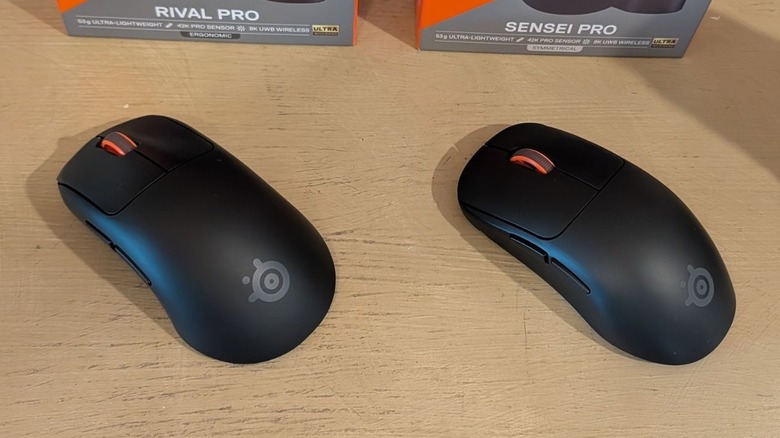
Feature-wise, the Sensei Pro and Rival Pro are nearly identical. But taking a look at these mice side by side, it's clear they're sporting slightly different designs. The Sensei Pro is symmetrical, with an even dome shape on both sides and a slight indent along each edge where your non-clicking fingers rest when holding the mouse. Alternatively, the Rival Pro features an ergonomic design for right-handed users, with a deeper indent on the left edge of the mouse where your thumb rests and a dome shape that's higher on the left side.
In addition to having extra height compared to the Sensei Pro, the Rival Pro is a bit wider. The Rival Pro measures 4.95 x 2.69 x 1.66 inches, whereas the Sensei Pro measures 4.94 x 2.62 x 1.52 inches. Both mice weigh in at approximately 1.86 ounces. If you have smaller hands, Steelseries' Rival Pro Mini or Sensei Pro Mini might be better picks, with dimensions of 4.75 x 2.57 x 1.59 inches and 4.65 x 2.46 x 1.43 inches, respectively. Both of these mini versions weigh a tiny bit less too: 1.73 ounces.
Plasticky design is lightweight, but nothing super special
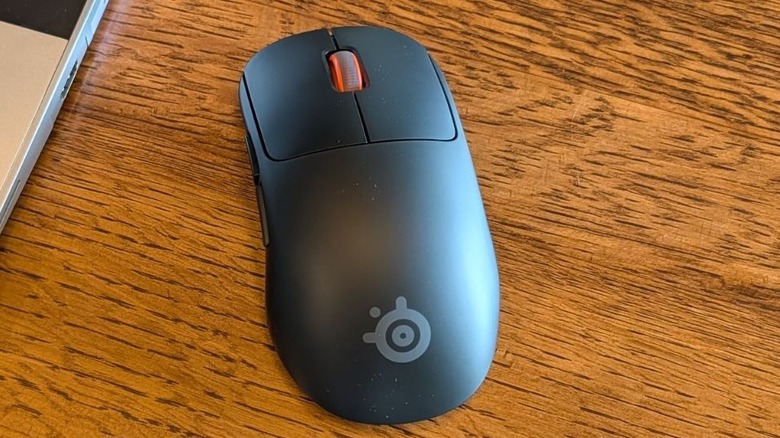
If you're after a lightweight gaming mouse, both the Rival Pro and Sensei Pro are fantastic options. It isn't clear exactly which material each mouse is constructed with, but it feels and looks like a high-quality plastic. If you don't want your mouse to feel smooth and slick or you don't want to see or clean the mild finger oils left behind after a long gaming session, Steelseries includes grip stickers you can apply. There are grip stickers for the left- and right-click buttons, the two small buttons on each mouse's left side, the edge below these side buttons, and the right edge. The grips are easy to apply and to adjust if you don't align them perfectly the first time.
Both models come with pre-installed white mouse feet made with 100% PTFE material, and there's a set of blue feet included in the box if you need to replace them down the line. The battery-charging base station has a similarly lightweight, plasticky feel, and both the base and the mice are equipped with various LED indicators for battery levels, polling rates, and DPI settings. Both the Rival Pro and Sensei Pro offer simplistic designs that feel great, but might not be particularly eye-catching on a desk.
Satisfying clicks and a smooth scroll wheel
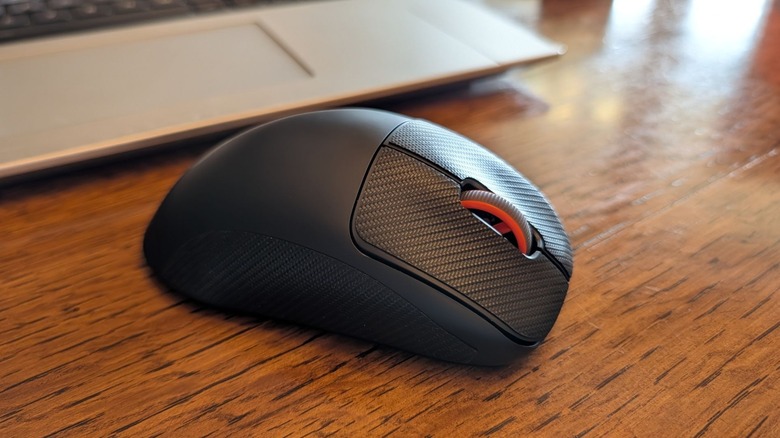
There's a pleasant amount of travel and resistance from the left- and right-click mouse buttons on both the Rival Pro and Sensei Pro, and these buttons along with the two side buttons give off a satisfying clicky sound and feel. The scroll wheel feels great and performs well, with a ridged, grippy center, decently spaced notches for the wheel to lock into as you scroll, and a near-instant, smooth response, whether you're scrolling or clicking.
While testing, I noticed the scroll wheel performance drop when the mouse was around 17% battery life, responding slowly or sometimes not at all. I messed with the mouse's performance settings in the software first, but ultimately, the thing that fixed the issue was swapping out the drained battery puck for the fully charged one ready to go in the base station.
Altogether, the wireless mouse system for both mice delivers a true polling rate of 8000 Hz and a response time of 0.125 milliseconds, and has the capability of going even further with a max over-polling rate of 9000 Hz and response time of 0.111 ms. Pressing the base station button allows you to change the polling and sensor report rates, or you can also customize this and many other settings via the SteelSeries GG app.
Wide DPI range and easy personalization via SteelSeries GG
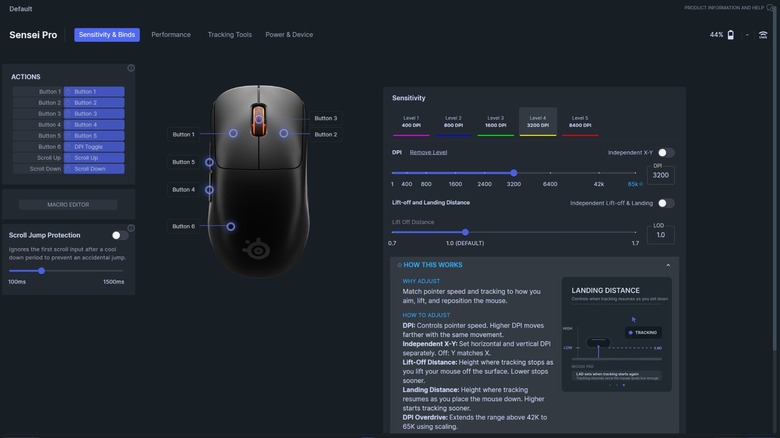
SteelSeries' Rival Pro and Sensei Pro mice have a great DPI range, starting at 1 and going all the way up to 65K DPI. Out of the box, it comes with five preset levels at 400, 800, 1600, 2400, and 3200 DPI, but you can customize all five of these levels via the software if you want. You can even toggle on an Independent X-Y setting and customize the DPI setting for the X and Y axes individually.
There are also five different levels for polling rate and sensor report rate settings, ranging from level one at 1000 Hz for both the polling and sensor report rate to level five at 8000 Hz for both. These levels are preset for your convenience, but you can customize any level to be exactly what you want as well, with available intervals at 125, 250, 500, 1000, 2000, 4000, and 8000 Hz for either polling rate or sensor report rate.
Each of the DPI levels corresponds with a color, and when you press the Power/DPI button on the bottom of the mouse, the color in the LED light on the left side of the mouse indicates which DPI level it's currently set to. Similarly, the polling and sensor report rate levels have their own unique colors, and you can tell which of these levels the mouse is using or change the level by pressing the base station's button and checking the built-in LED indicator.
The Rival Pro and Sensei Pro are highly customizable
Past adjusting polling rate and DPI sensitivity, the SteelSeries GG app lets you customize something called Lift-off and Landing Distance. This affects how far you can lift the mouse off your desk surface before it stops tracking and how close it needs to be before tracking can resume. By default, it's set to 1, but you can customize this range between 0.7 and 1.7 for both or toggle on the independent setting to set each distance individually. You can also adjust Click Response between 0 and 20 ms, though SteelSeries gives a warning that this is an advanced setting that, if changed from the recommended default of 8 ms, could result in unintended or double clicks.
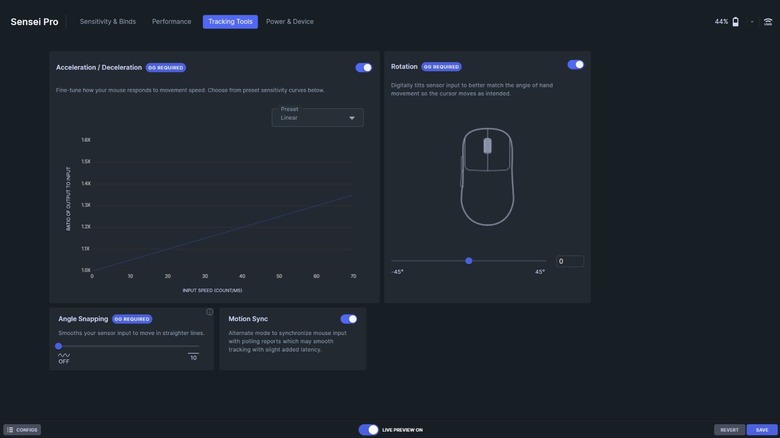
On the Tracking Tools tab in the app, you can change how different inputs are received. Adjusting Acceleration/Deceleration affects how your mouse responds to movement speed, changing Rotation digitally tilts sensor input to better match your hand movement, and enabling Angle Snapping helps sensor input move in straighter lines. Then, the Power & Device tab allows you to customize what the mouse does in Low Power mode, if anything, and when it kicks in, along with personalizing the sleep timer to preserve battery.
Two programmable side buttons, endless possibilities
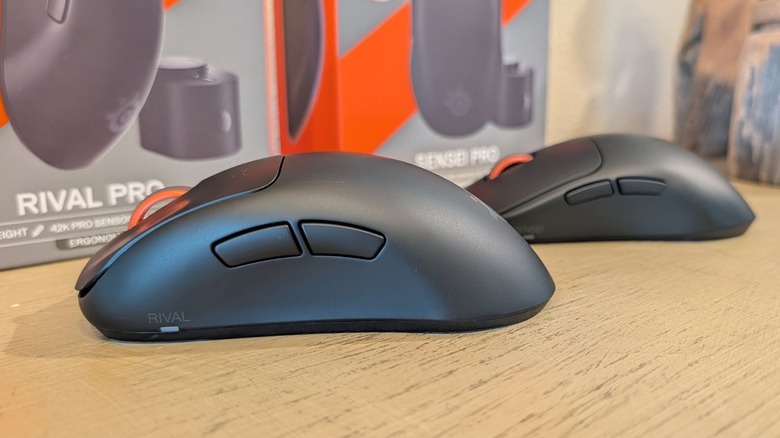
All in all, there are six total buttons on the Rival Pro and Sensei Pro. There's the left- and right-click buttons, the scroll wheel, the Power/DPI button on the bottom, and two extra buttons on the left side of the mouse. All of the buttons are technically customizable, but all except the two on the mouse's left side already serve vital purposes, so these two small buttons are likely the only ones that users will change via the SteelSeries GG app.
Either button can be set up to act as a key on your keyboard, like the Backspace key or a Function key, the Print Screen command, or an arrow key. Or, you can set the buttons to function as media controls, launch an installed application, launch an engine app, or kick off common OS shortcuts, including copy, paste, lock screen, open task manager, snap the window to the right or left edge, and more.
If none of that sounds like a helpful action to assign to these programmable buttons, you can launch the Macro Editor and get to work on a fully customized command. Using the Macro Editor, you can create a new text macro where you can paste your own scripts or a new keypress macro that tracks button presses from both your mouse and keyboard after you hit record.
Zero notes on this unlimited battery system
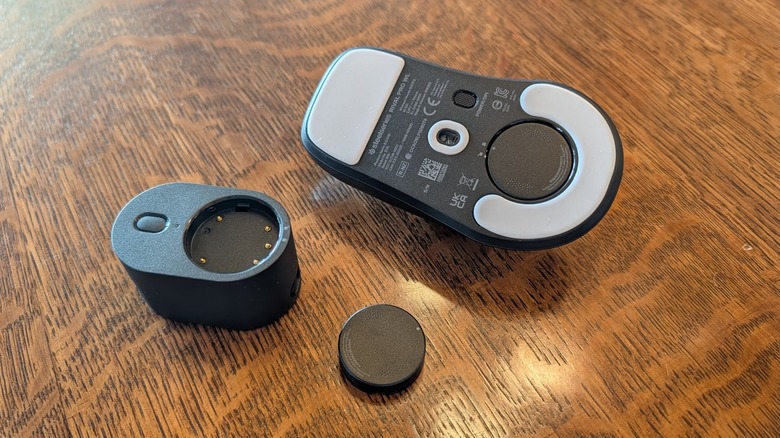
One of the best features of Steelseries' Rival Pro and Sensei Pro mice is its unlimited battery life system. There are two circular batteries, one that clicks into the bottom of the mouse and another that clicks into the top of the base station. When you see the mouse LED (or the base station LED) pulsing red, you know it's time to swap the batteries.
 Sarah Chaney/SlashGear
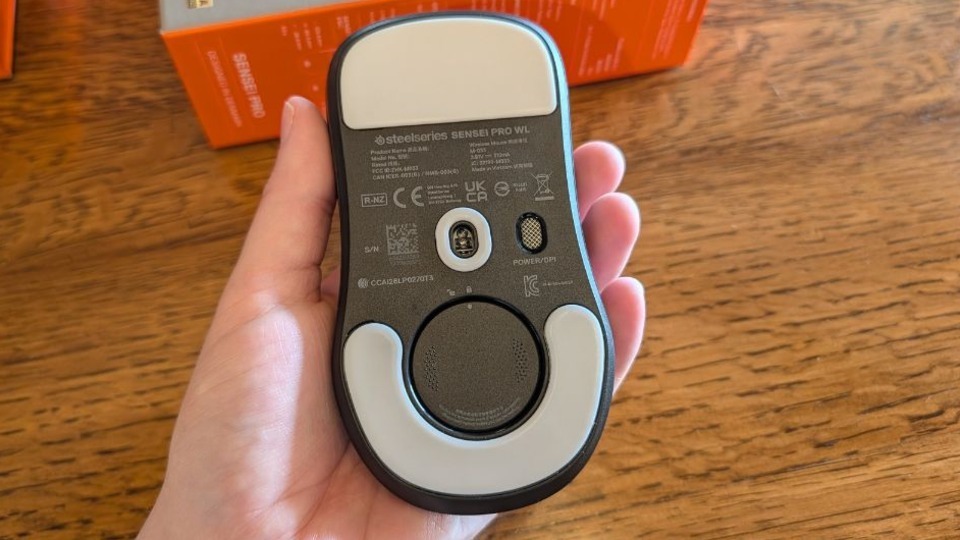
To take the depleted battery out of the mouse, you simply hold the mouse in one hand, push up on the battery, and twist it counterclockwise to unlock it. Then, to install a new battery in the mouse (and also set up the depleted battery to charge in the base station), you align it until it falls level in the slot and then twist it clockwise to lock it into place.
It's an incredibly fast and easy process to swap the batteries, taking less than 10 seconds in total once you know what you're doing. Plus, with how great the battery life is, you likely won't be swapping the batteries very often anyway. After a few hours of work, the mouse had only used up around 20% battery. At the same time, the base station had charged up the other battery roughly 60%. So even if you're demanding more from the mouse when gaming, it's great to know the battery in the base station will charge much faster than you can deplete the battery in the mouse.
Should you buy a SteelSeries Rival Pro or Sensei Pro gaming mouse?
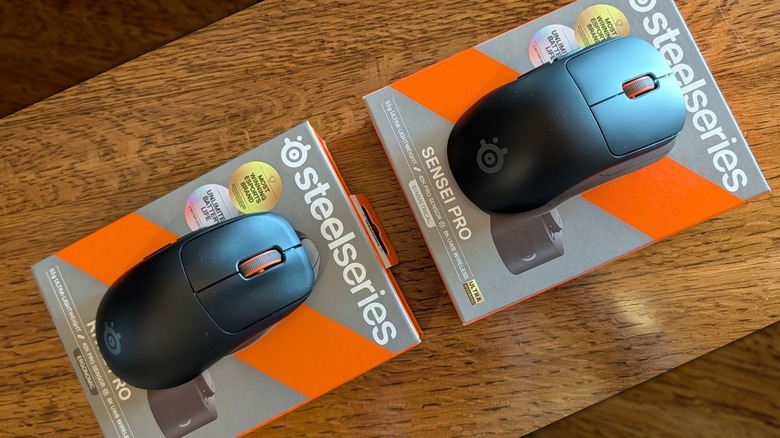
After testing the Rival Pro and Sensei Pro mice daily over the last week, I think it's safe to say SteelSeries absolutely delivers on the advertised promise of a lightweight wireless gaming mouse with smooth performance and minimal input delay, thanks to 8K ultra-wideband connectivity via the base station. To sweeten the deal further, both mice feature an unlimited battery life system, easy plug-and-play setup, satisfying button clicks and scroll wheel performance, and a plethora of ways to quickly customize the mouse.
That said, I have a few grievances with both the Rival Pro and the Sensei Pro, but they're minor. Other than the small LEDs built into the mouse and base station, which only serve the purpose of telling you which DPI and polling rate settings you're using, there are no customizable RGB LEDs, and each mouse's overall design is a bit boring compared to other gaming mice on the market. Then, the plasticky material used to make these mice as airy as they are will collect finger oils, so be prepared to clean it often, apply the grips to minimize prints, or be okay with a slightly oily mouse decorating your desk.
All things considered, the Rival Pro and Sensei Pro are fantastic lightweight, responsive gaming mice with a highly desirable infinite battery life system. So despite its small imperfections of lackluster fingerprint resistance and no RGB elements, it's an investment worth considering for your gaming setup.
You can purchase each mouse in the SteelSeries online store now for approximately $180 apiece on pre-order (or straight away, depending on when you're reading this review!)